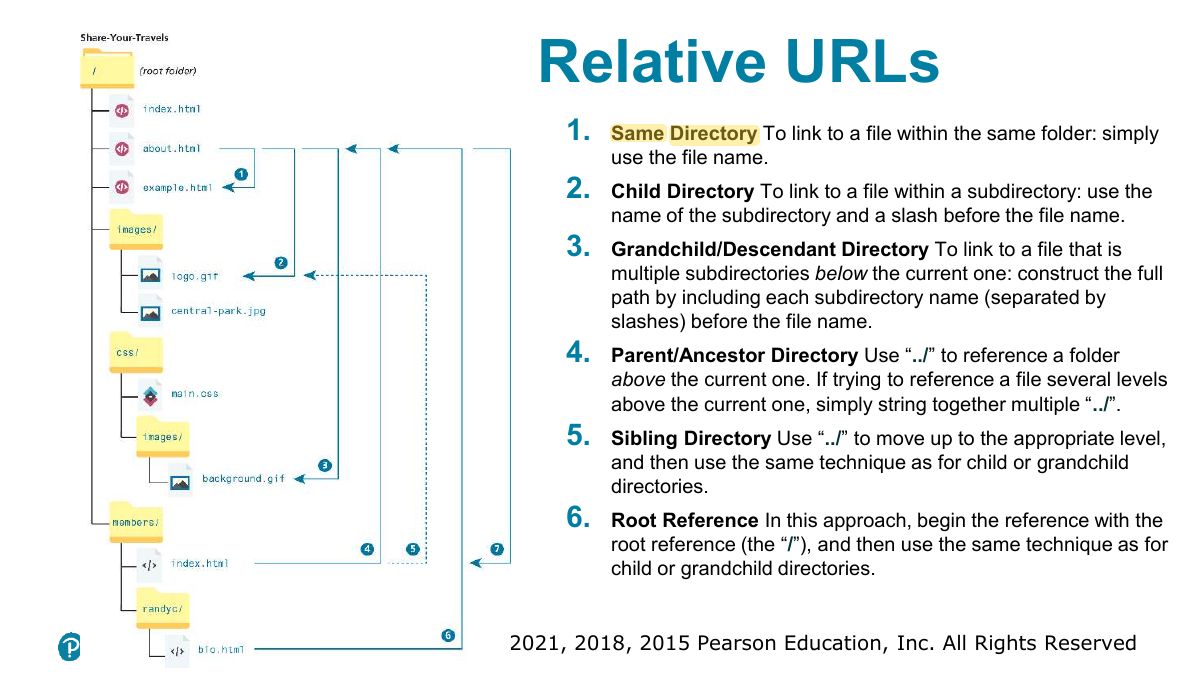
From /site/pages/about.html, "../images/logo.png" points to:
HTML
HTML syntax, elements and attributes, semantic markup, the structure of an HTML5 document, headings, paragraphs, links and absolute vs. relative URLs, images, entities, lists, HTML5 semantic elements, tables with colspan and rowspan, forms (GET/POST, text, choice and button controls, labels) and validation.
How to read this page
Every original slide is shown unchanged. Yellow marks on a slide point to a numbered note: hover or tap a mark to jump to its note, and hover a note to see its marks. Questions tagged Past exam appeared on a real paper; Prediction questions are likely angles, not confirmed. Pick an answer to each question: a wrong pick tells you why it is wrong, so you can try again.
All 73 slides
- 1 Fundamentals of Web Development
- 2 In this chapter you will learn . . .
- 3 What Is HTML and Where Did It Come From?
- 4 HTML Syntax
- 5 Empty Element
- 6 Semantic Markup
- 7 Structure of HTML Documents
- 8 The title element and SEO
- 9 Structure elements of an HTML5 document
- 10 DOCTYPE
- 11 <Html> element
- 12 <Head> Element
- 13 <Body> Element
- 14 Nesting HTML Elements
- 15 Correct Nesting
- 16 Quick Tour of HTML Elements
- 17 Quick Tour of HTML Elements (cont)
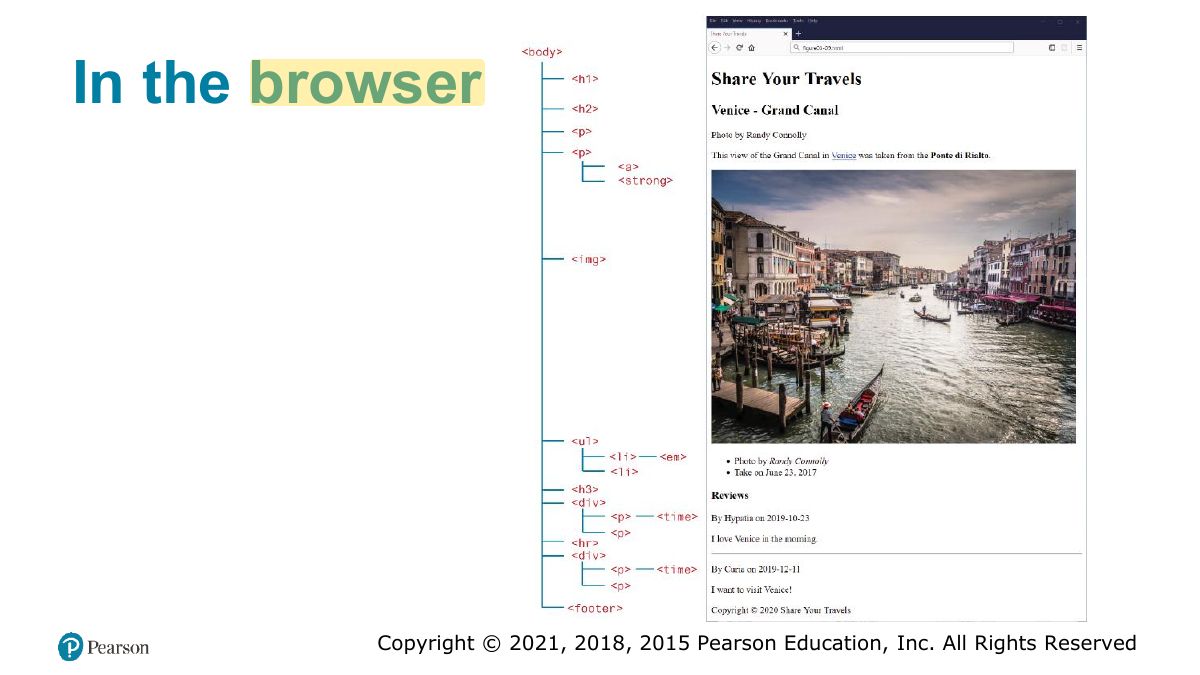
- 18 In the browser
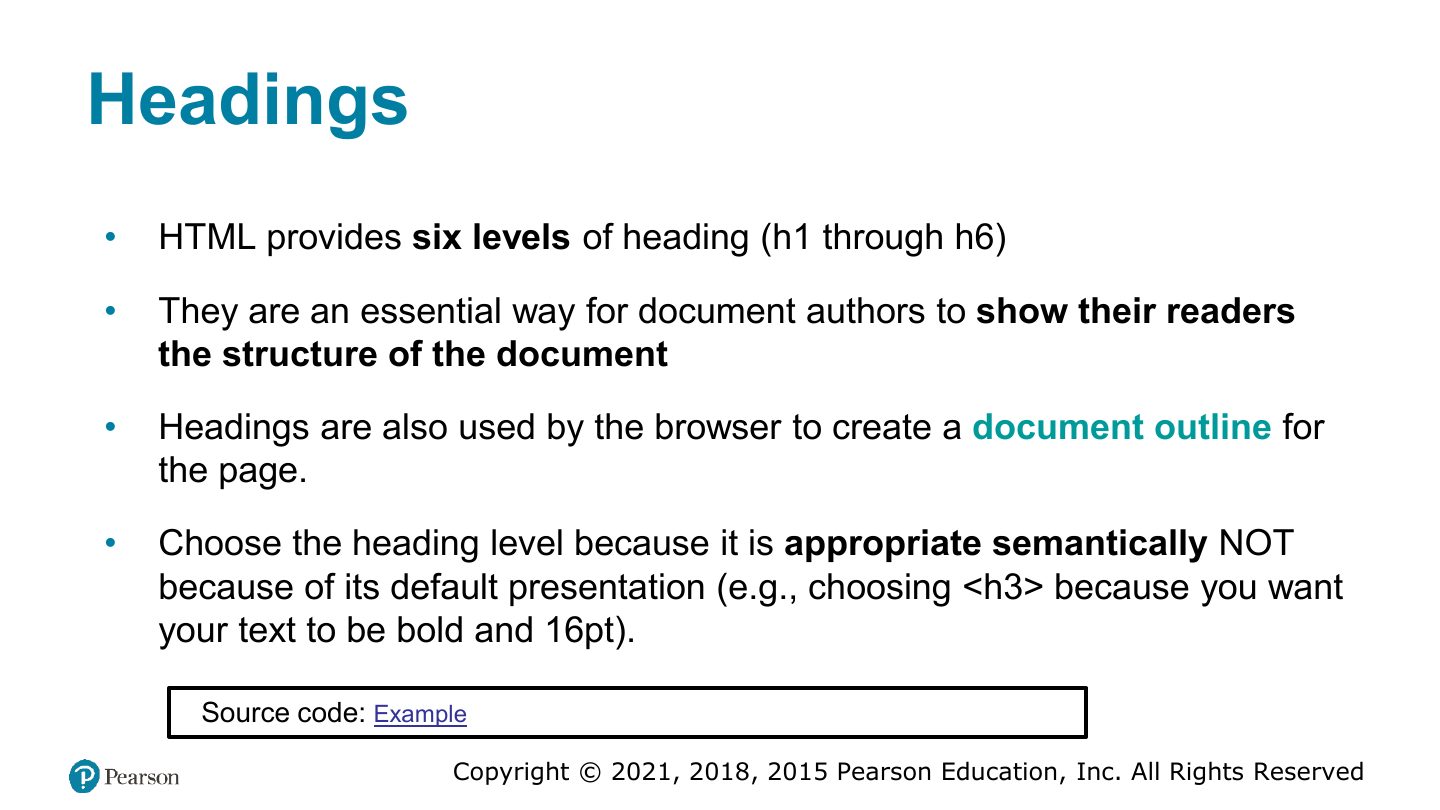
- 19 Headings
- 20 Paragraphs and Divisions
- 21 HyperLinks
- 22 Kinds of Links
- 23 Class Task
- 24 Absolute and Relative URLs
- 25 Relative URLs
- 26 Inline Text Elements
- 27 Images
- 28 Character Entities
- 29 Lists
- 30 HTML5 Semantic Structure Elements
- 31 HTML5 Semantic Structure
- 32 and figcaption
- 33 Home Task
- 34 Fundamentals of Web Development
- 35 In this chapter you will learn . . .
- 36 HTML Tables
- 37 Additional table elements
- 38 Basic table structure
- 39 Spanning columns
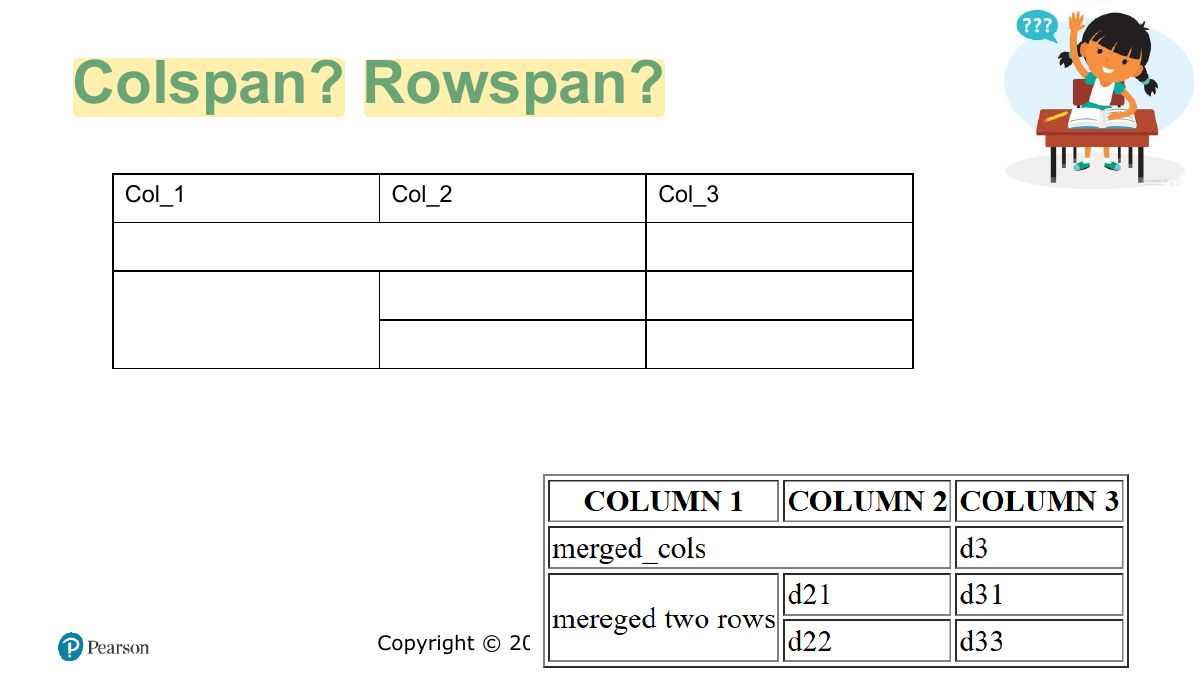
- 40 Colspan? Rowspan?
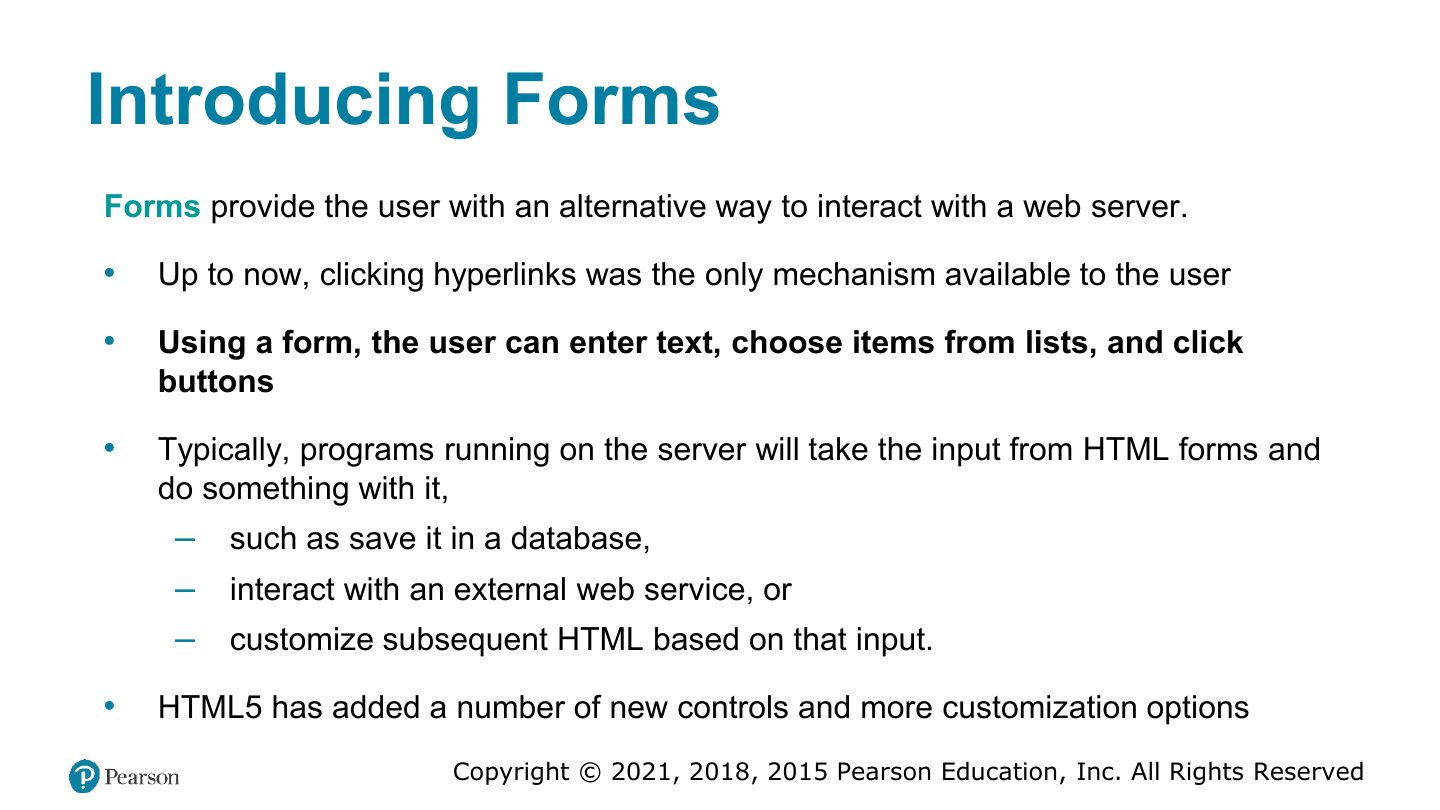
- 41 Introducing Forms
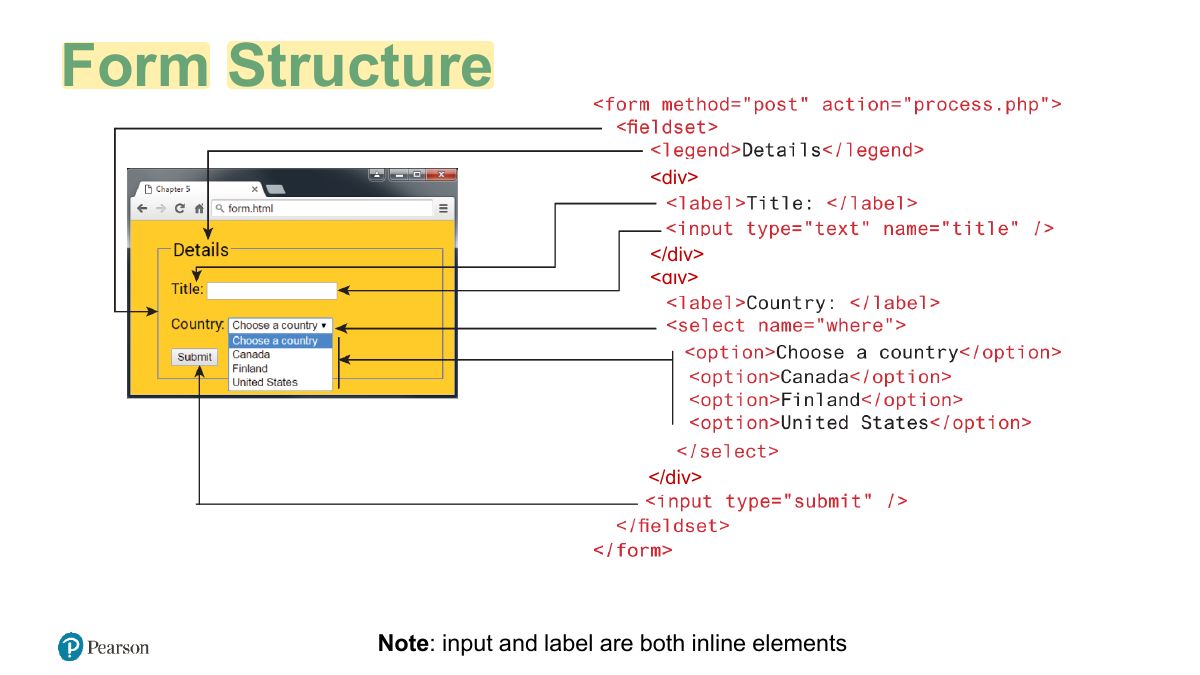
- 42 Form Structure
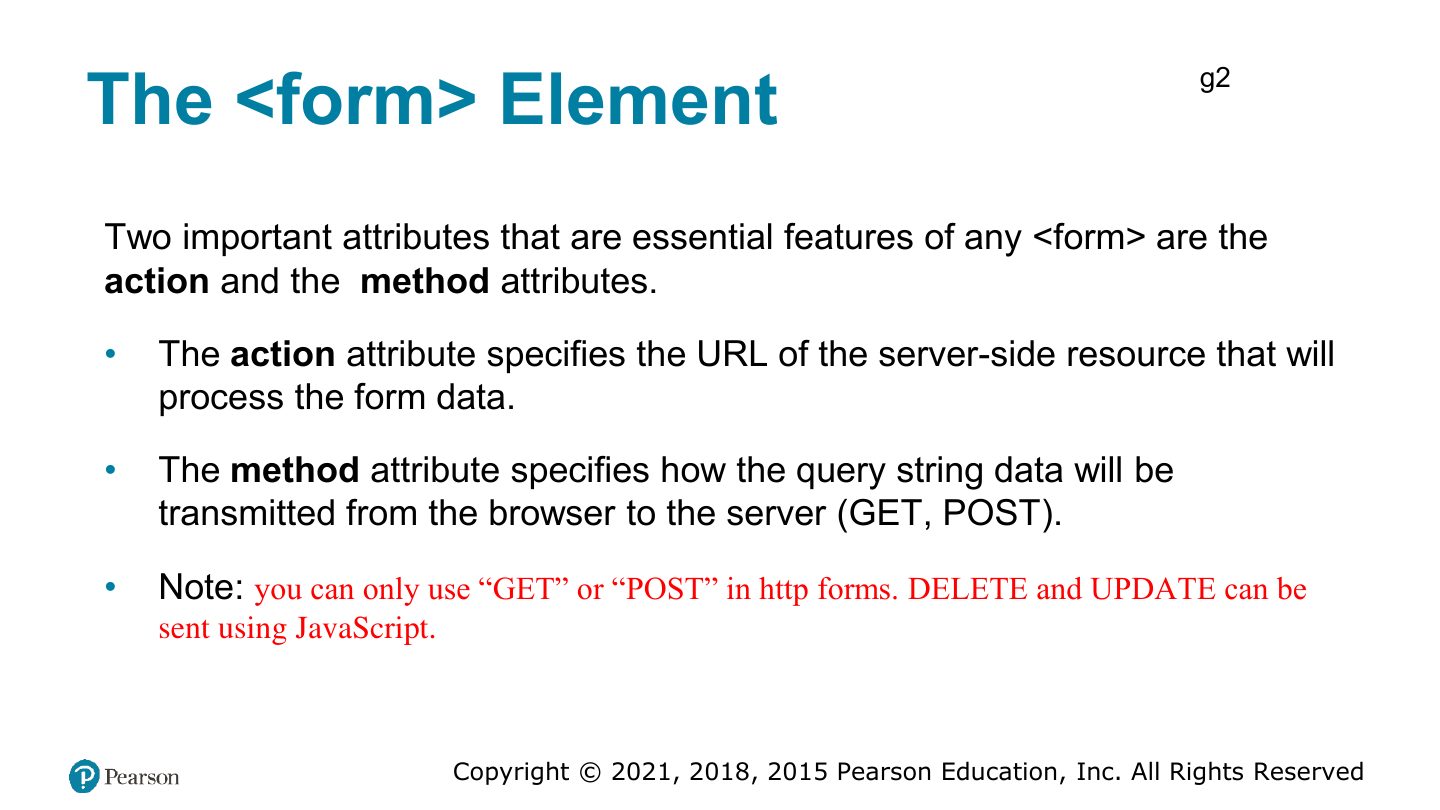
- 43 The <form> Element
- 44 Query Strings
- 45 GET
- 46 POST
- 47 Form Control Elements
- 48 Text Input Controls
- 49 Choice Controls
- 50 Select Lists
- 51 Select Lists (ii)
- 52 Task
- 53 Radio Buttons
- 54 Checkboxes
- 55 Button Controls
- 56 Example button elements
- 57 Example button elements
- 58 Revise
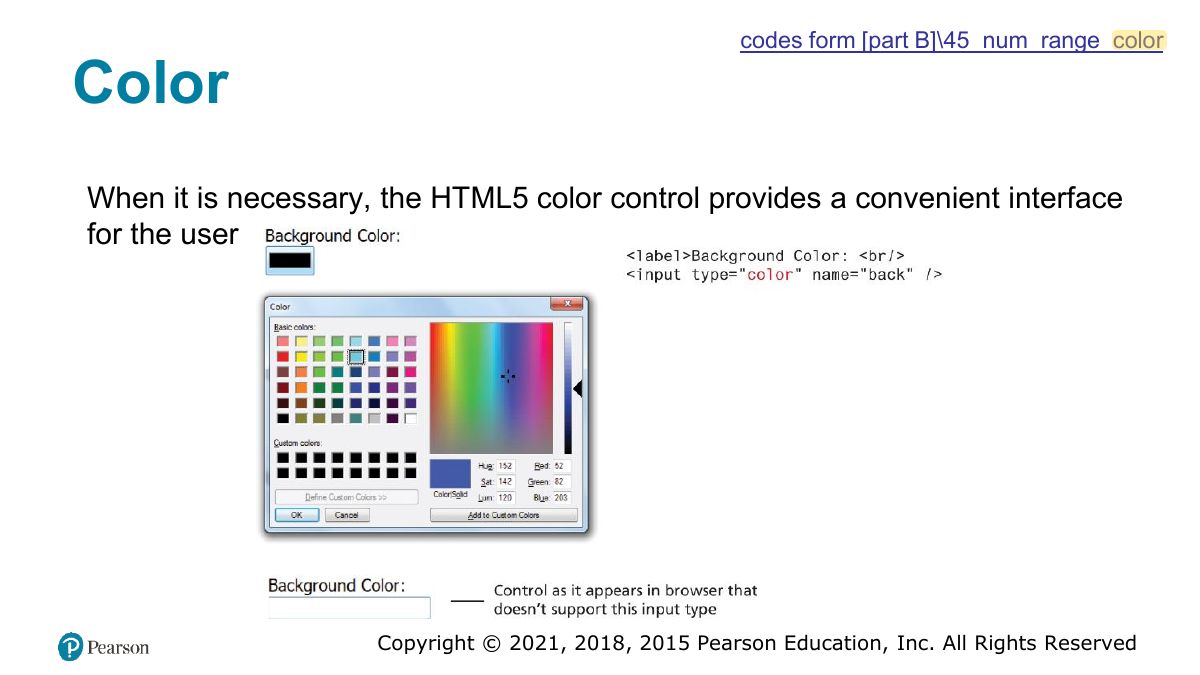
- 59 codes form [part B]\45_num_range_color
- 60 codes form [part B]\45_num_range_color
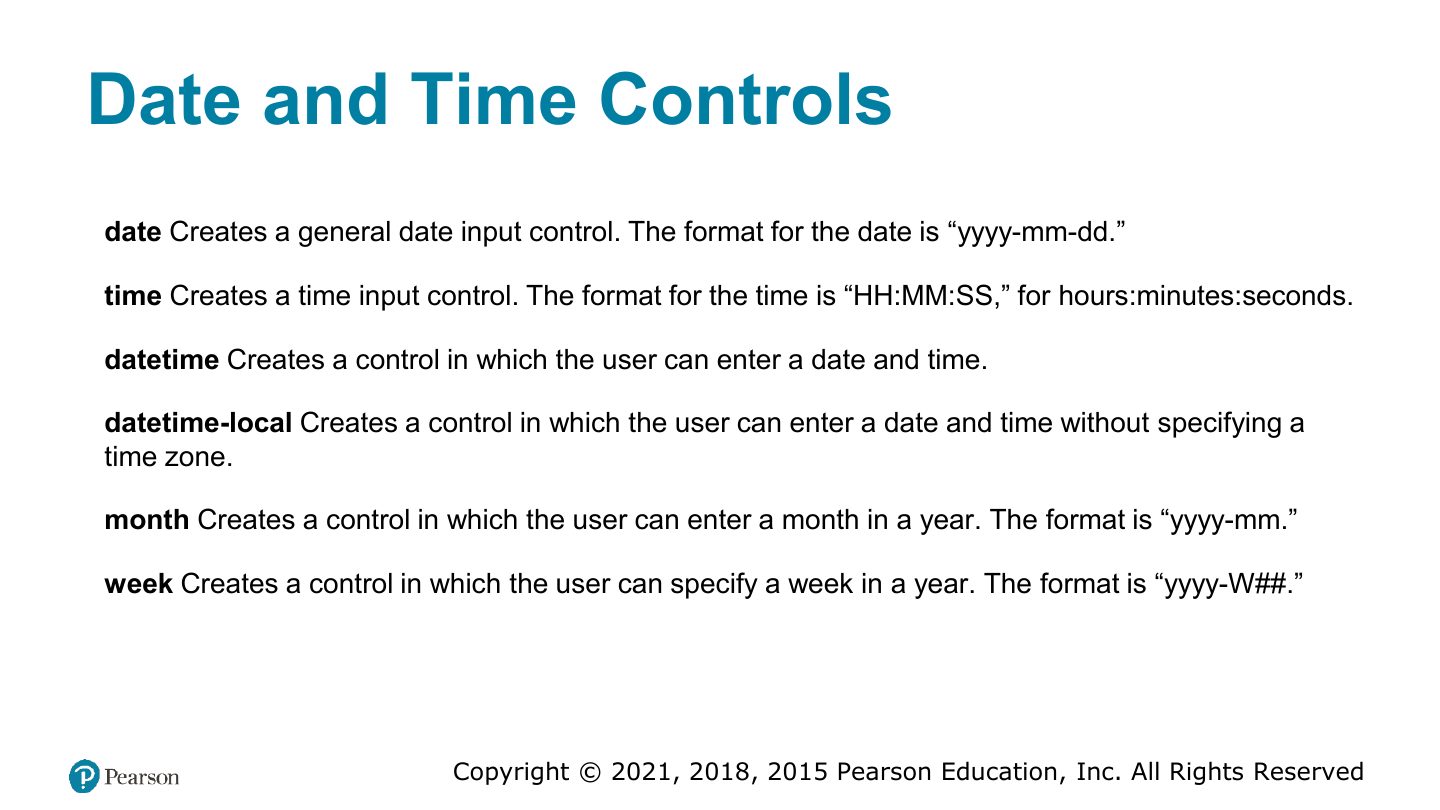
- 61 Date and Time Controls
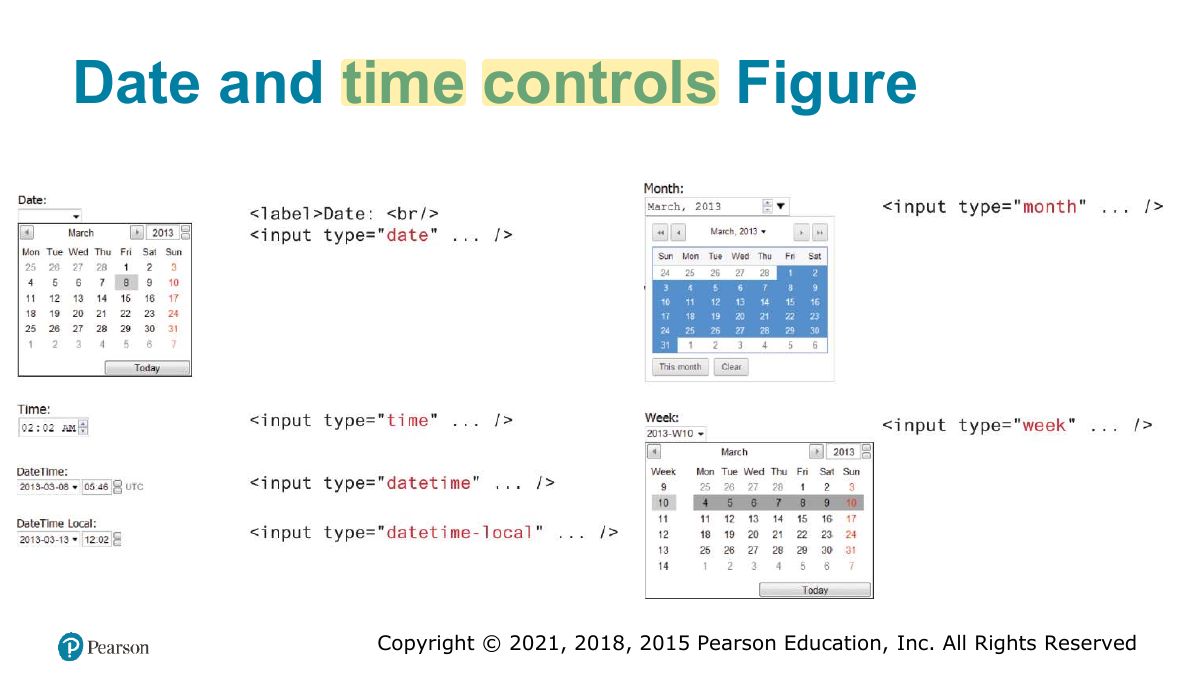
- 62 Date and time controls Figure
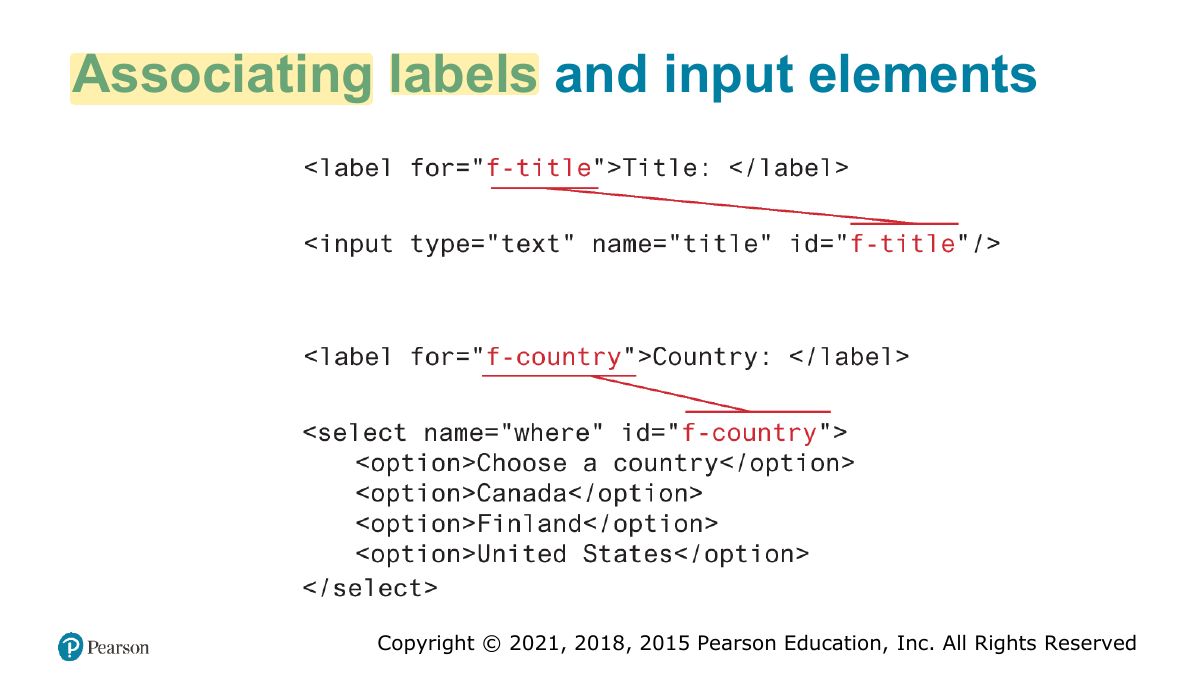
- 63 Associating labels and input elements
- 64 Validating User Input
- 65 Where to Perform Validation
- 66 Types of Input Validation
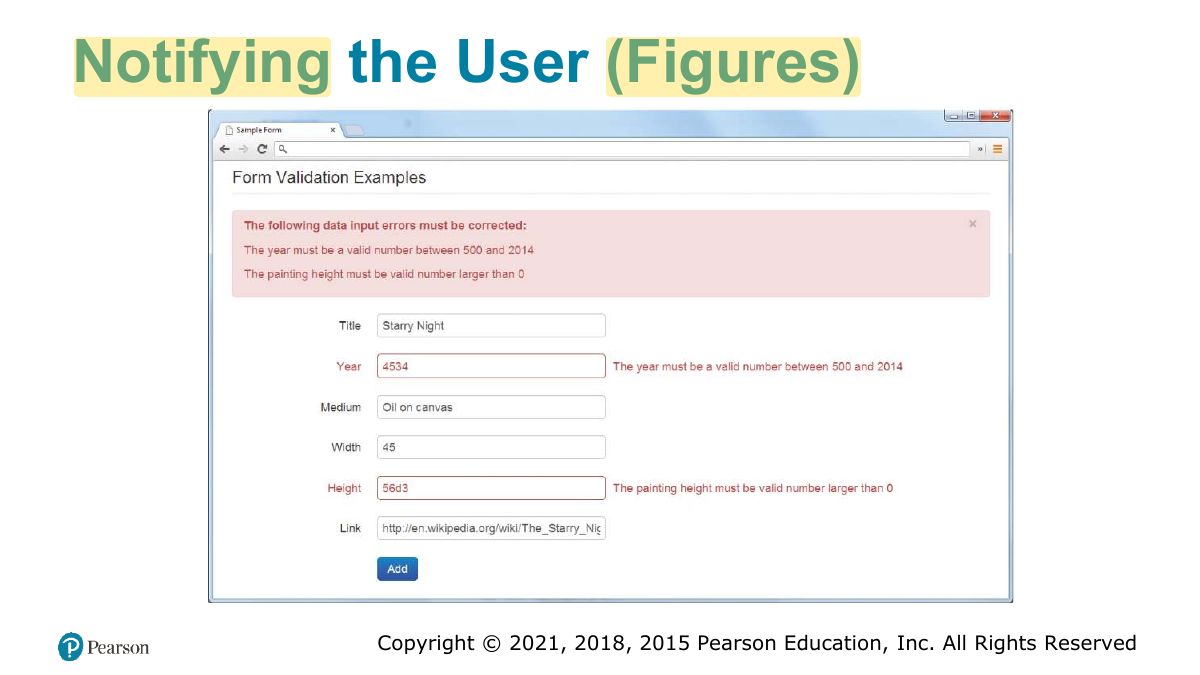
- 67 Notifying the User
- 68 Notifying the User (Figures)
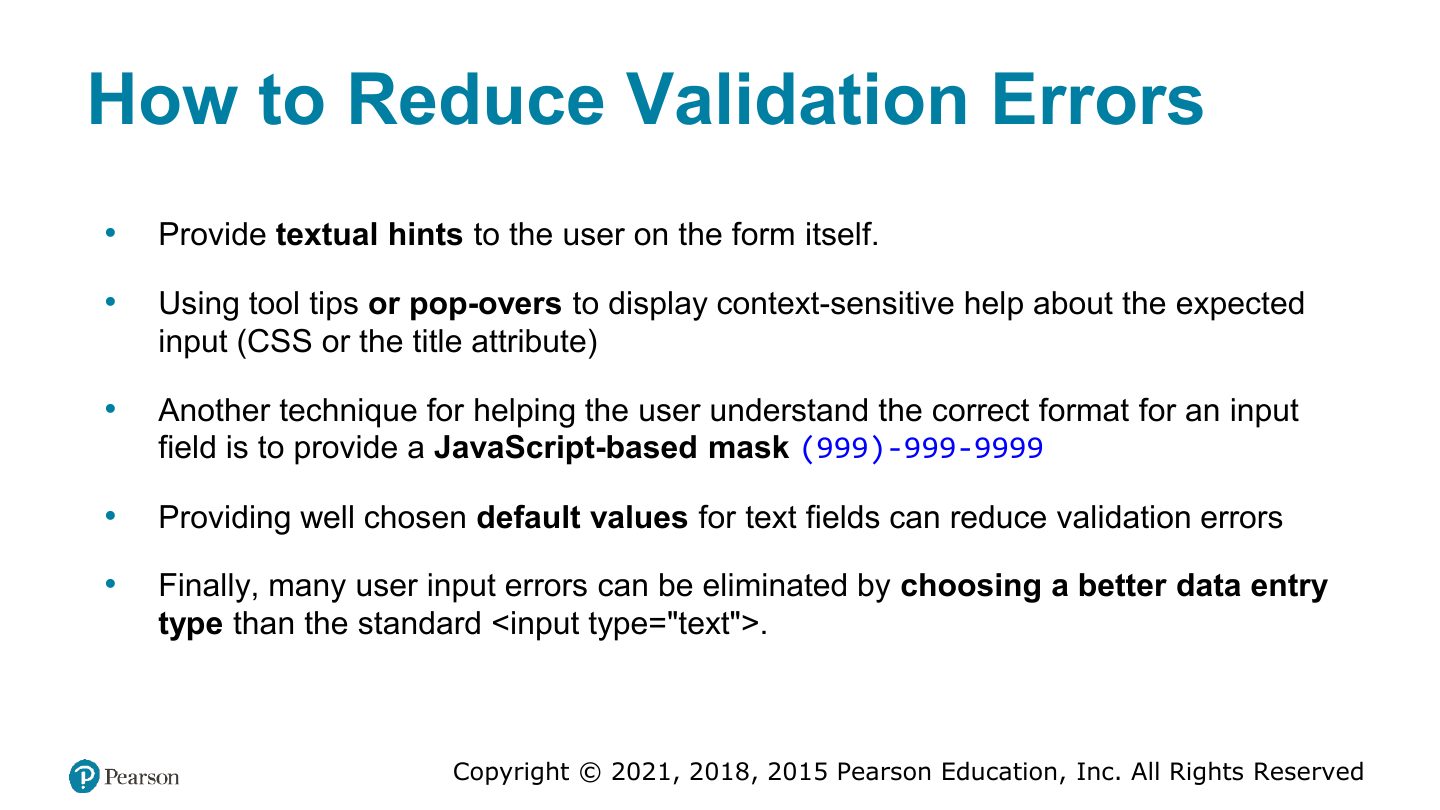
- 69 How to Reduce Validation Errors
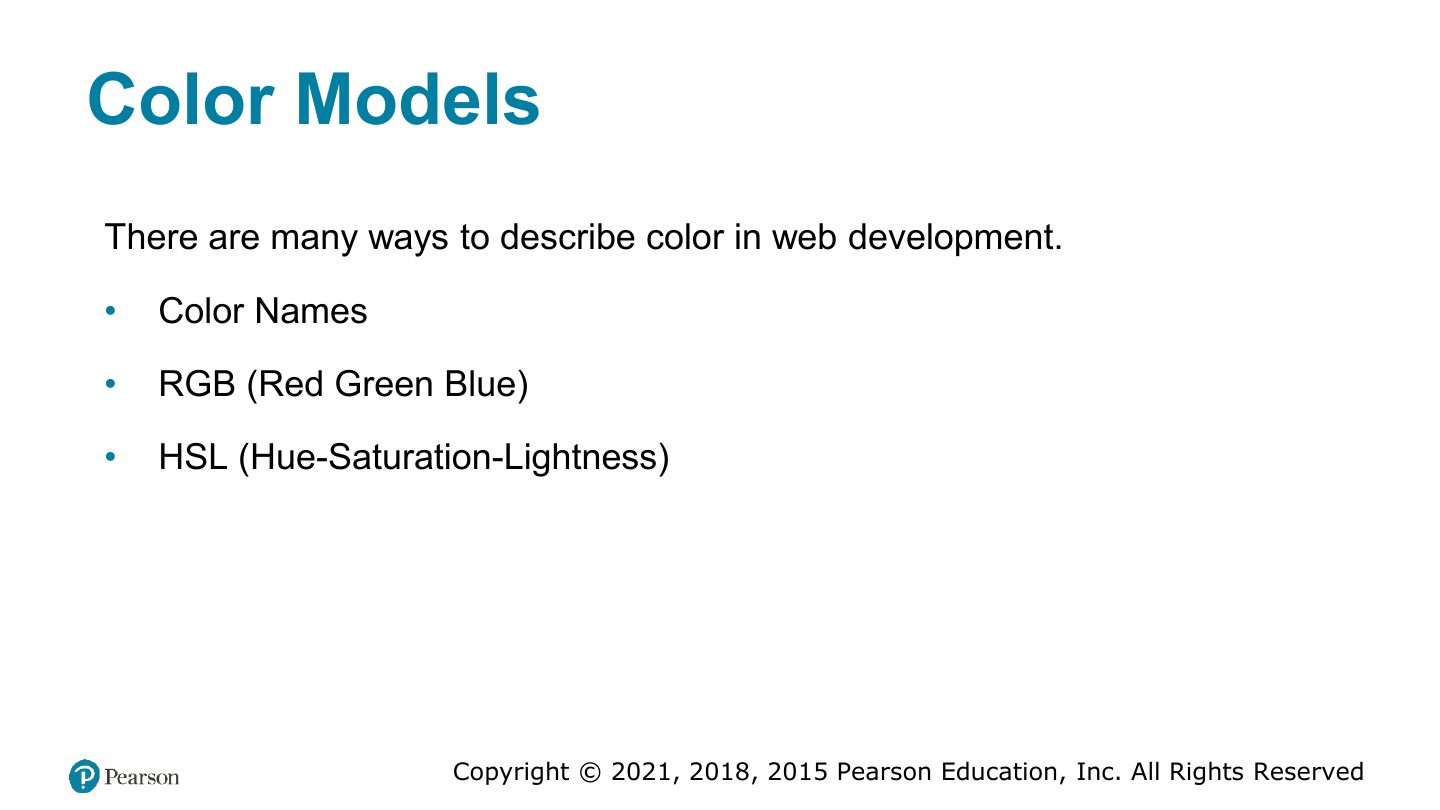
- 70 Color Models
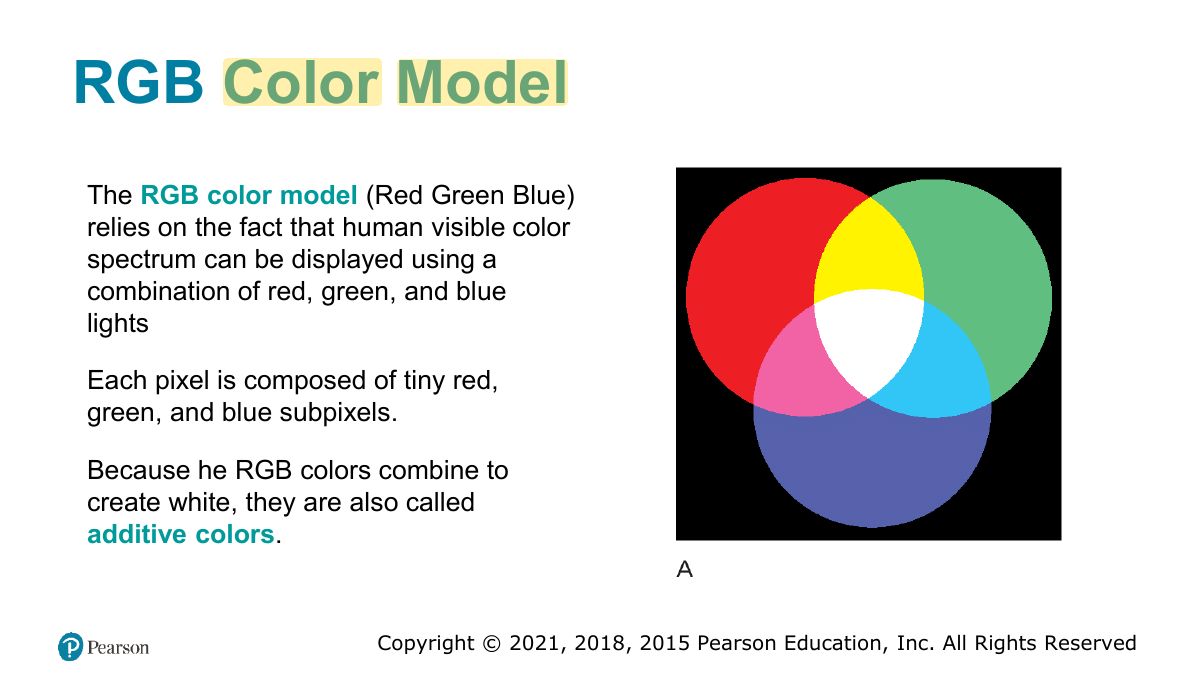
- 71 RGB Color Model
- 72 Slide 72
- 73 Live Server
Fundamentals of Web Development
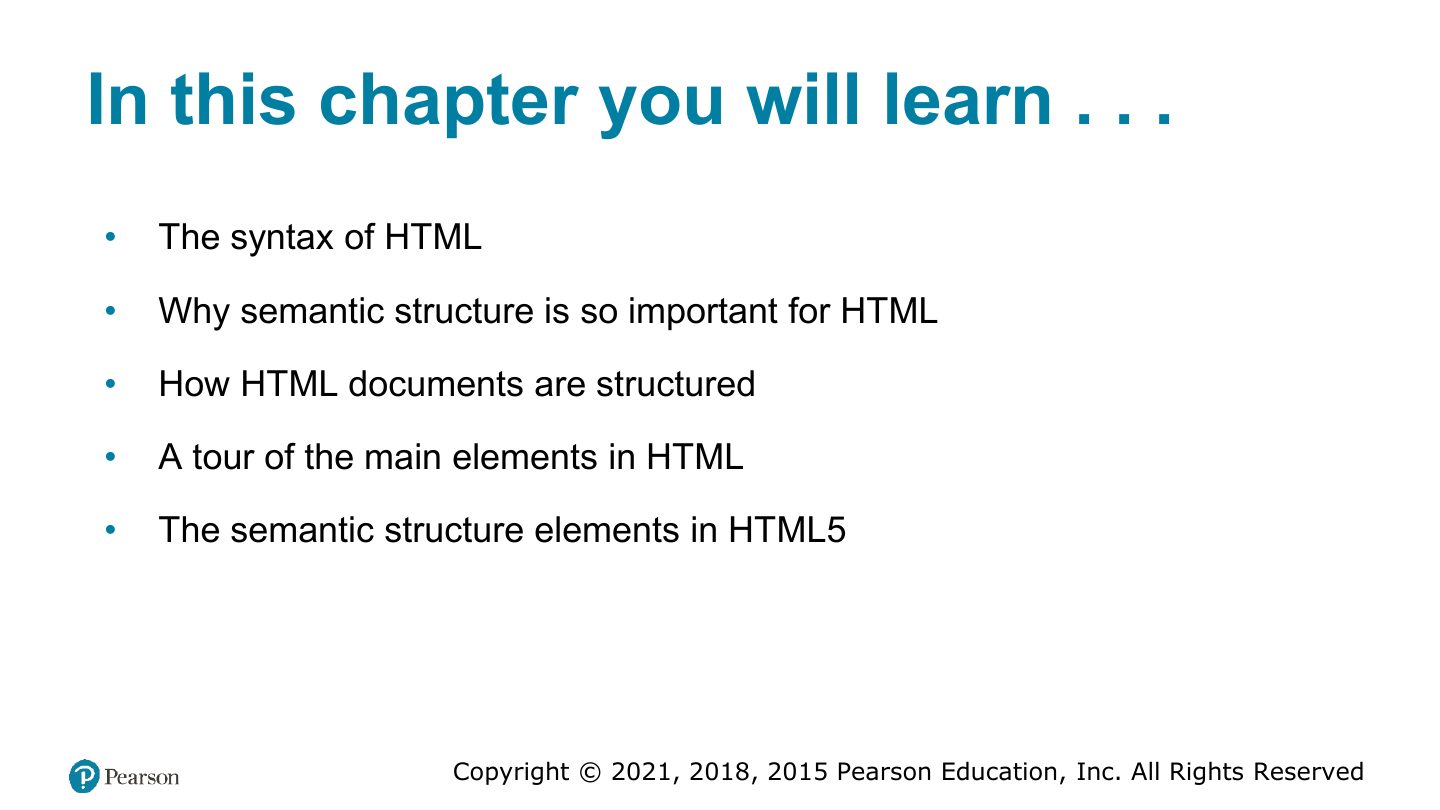
In this chapter you will learn . . .
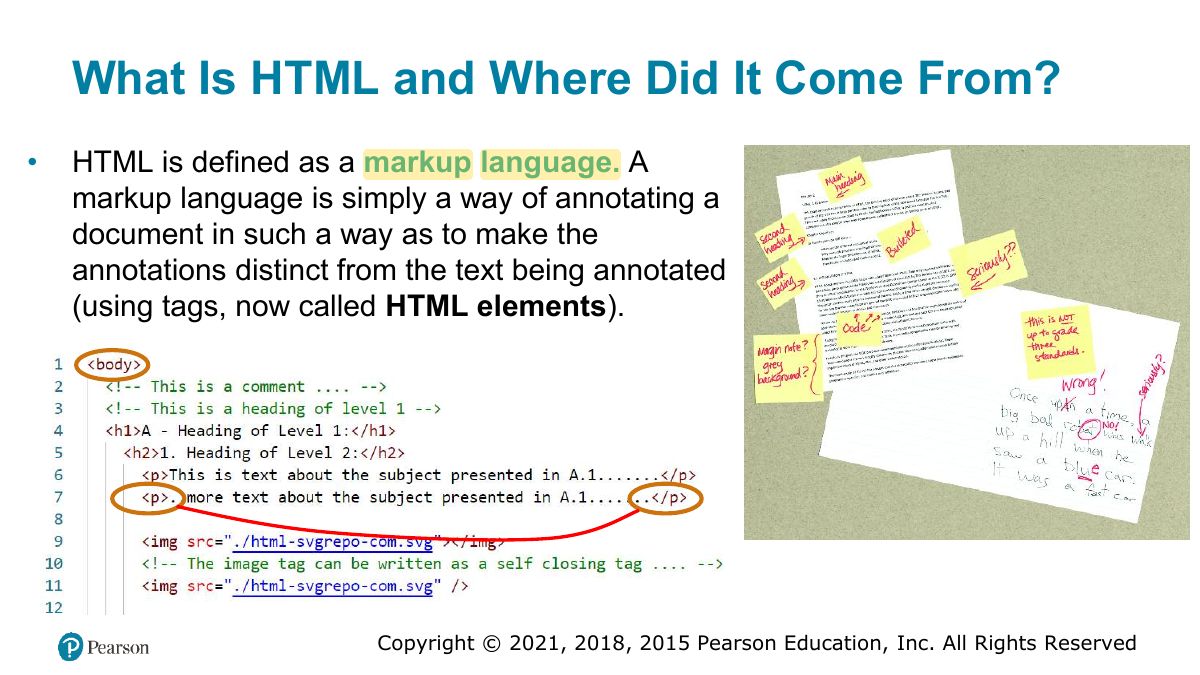
What Is HTML and Where Did It Come From?
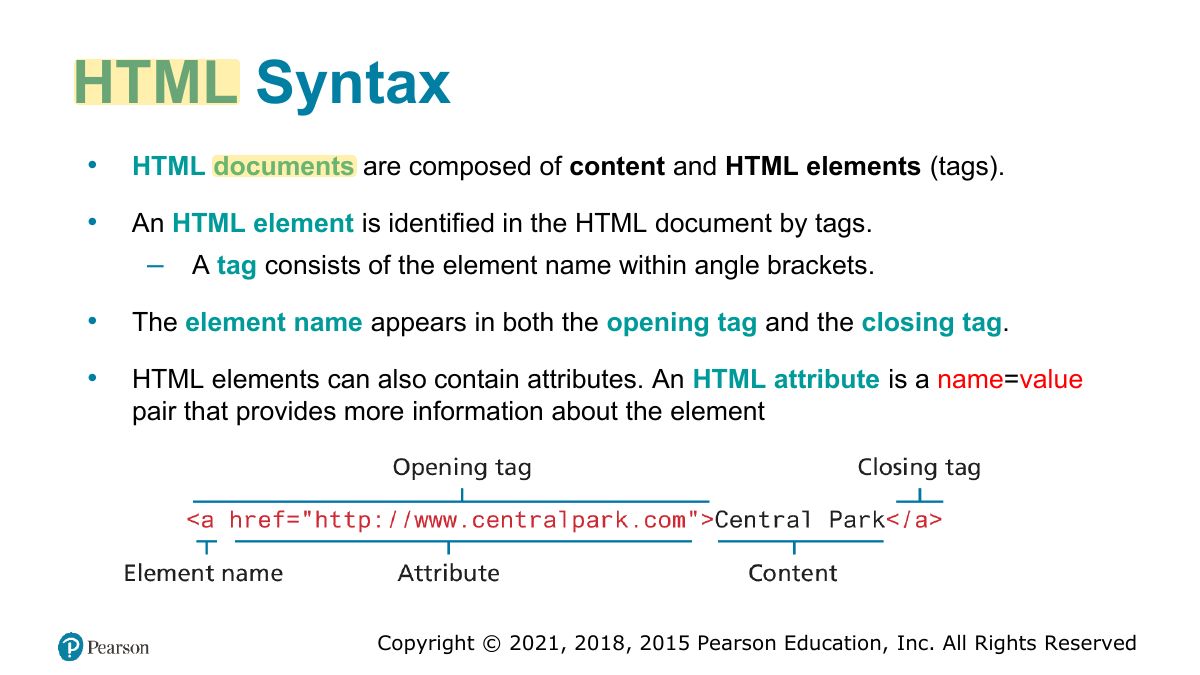
HTML Syntax
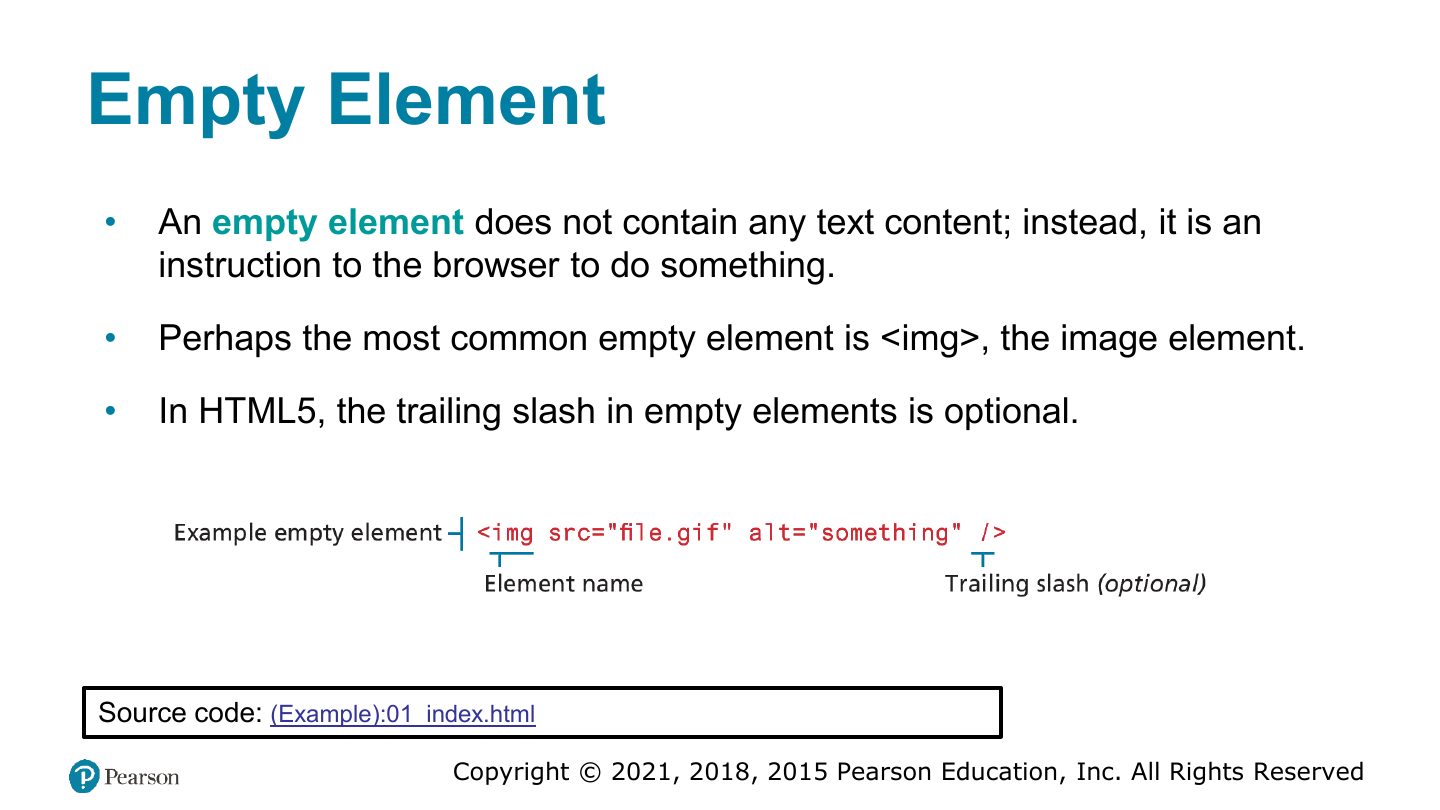
Empty Element
Notes
Empty (void) elements have no content or closing tag: <img>, <br>, <input>, <meta>.
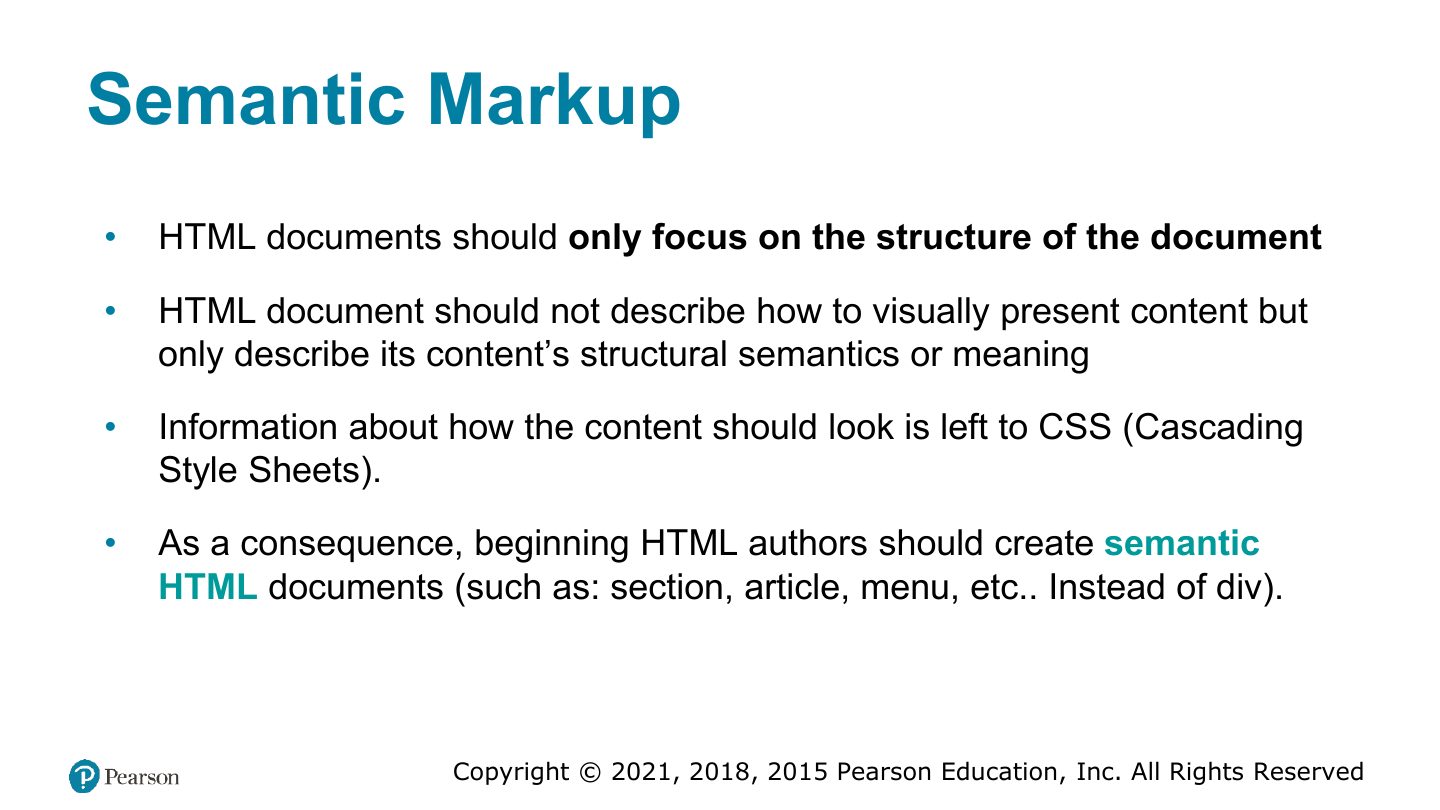
Semantic Markup
Notes
Semantic markup: tags describe MEANING (header, nav, article), not appearance; helps SEO, accessibility, maintenance.
Structure of HTML Documents
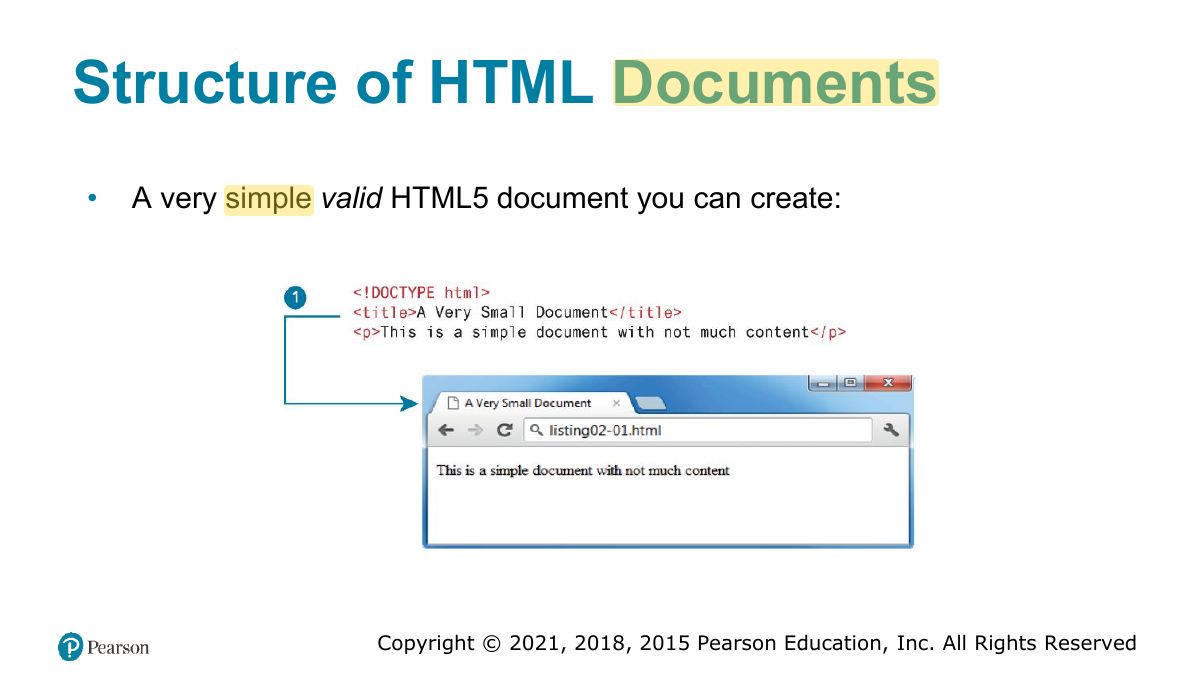
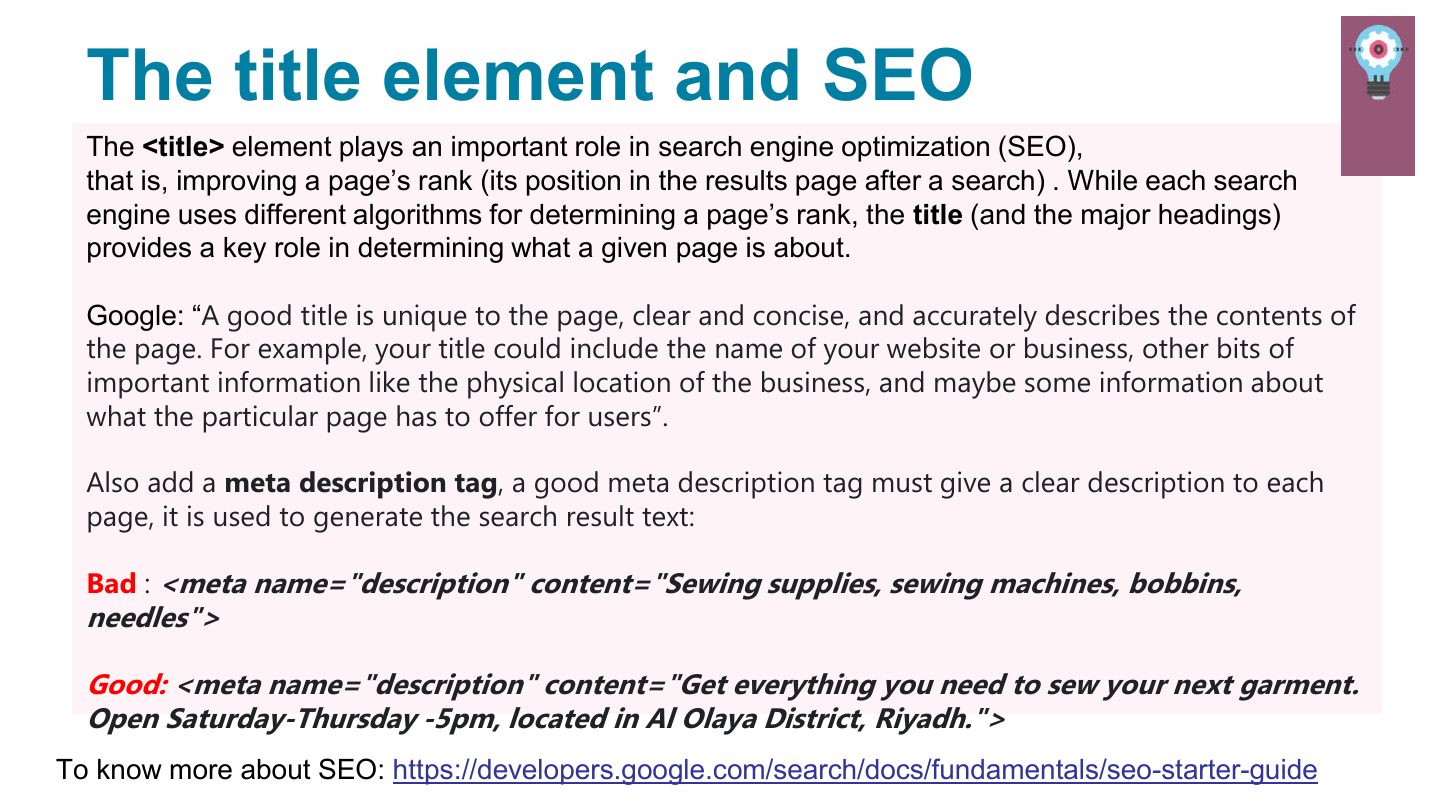
The title element and SEO
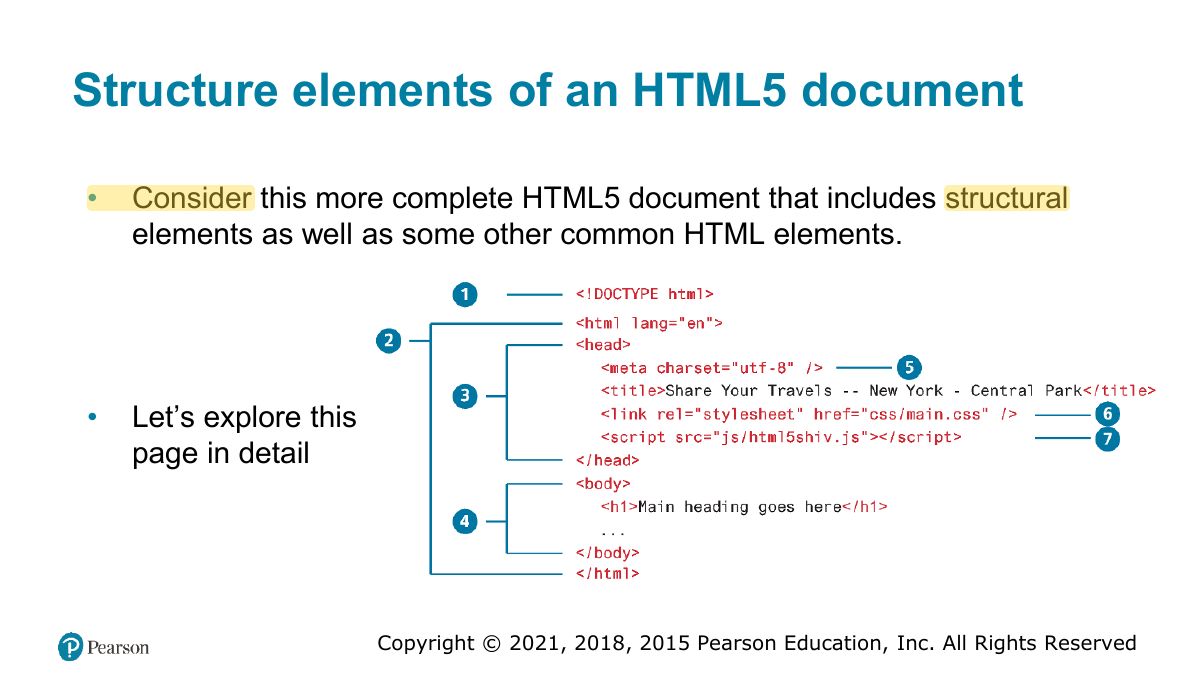
Structure elements of an HTML5 document
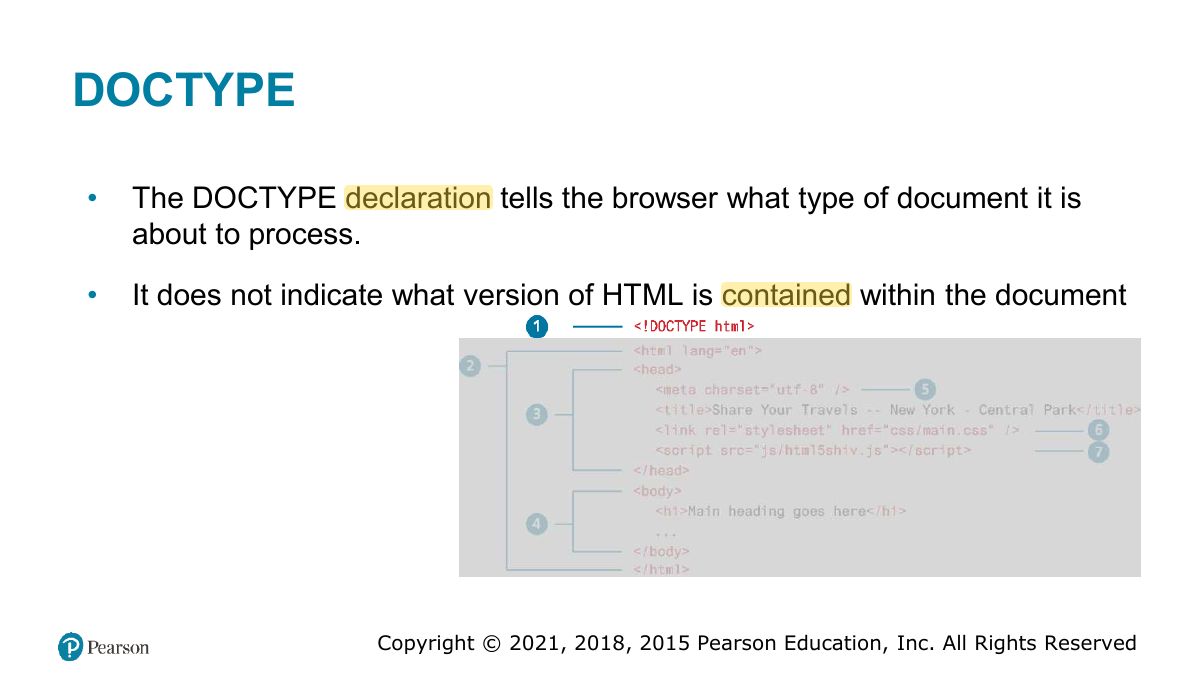
DOCTYPE
Notes
<!DOCTYPE html> tells the browser to use HTML5 standards mode.
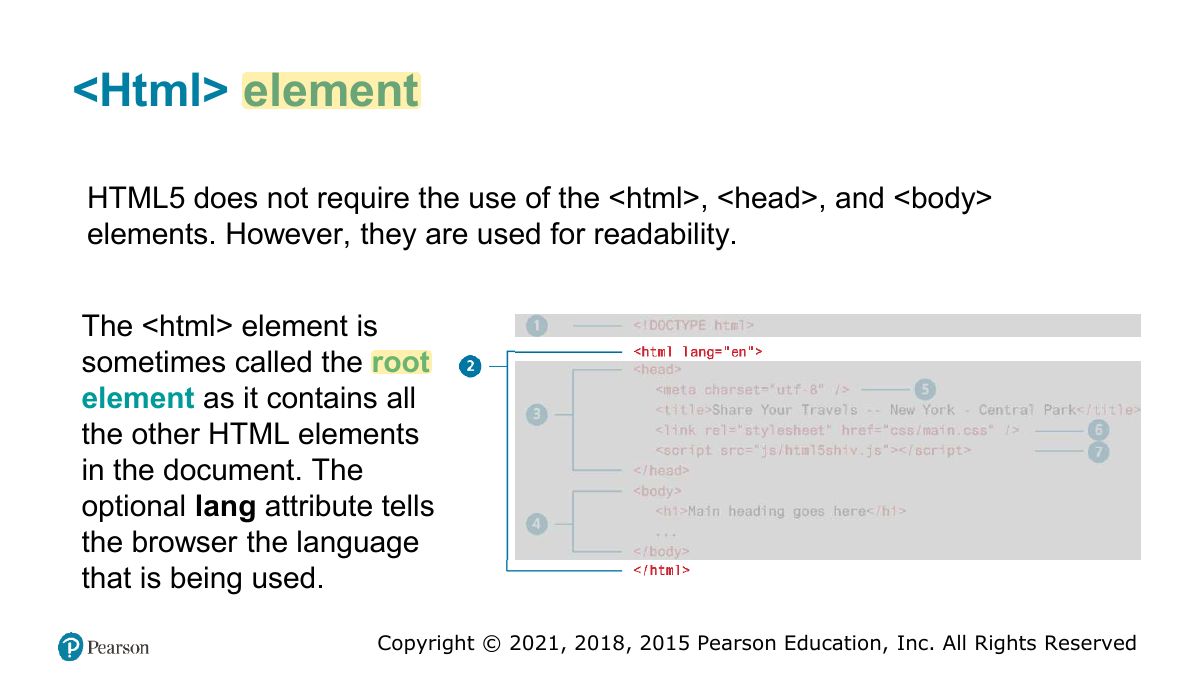
<Html> element
<Head> Element
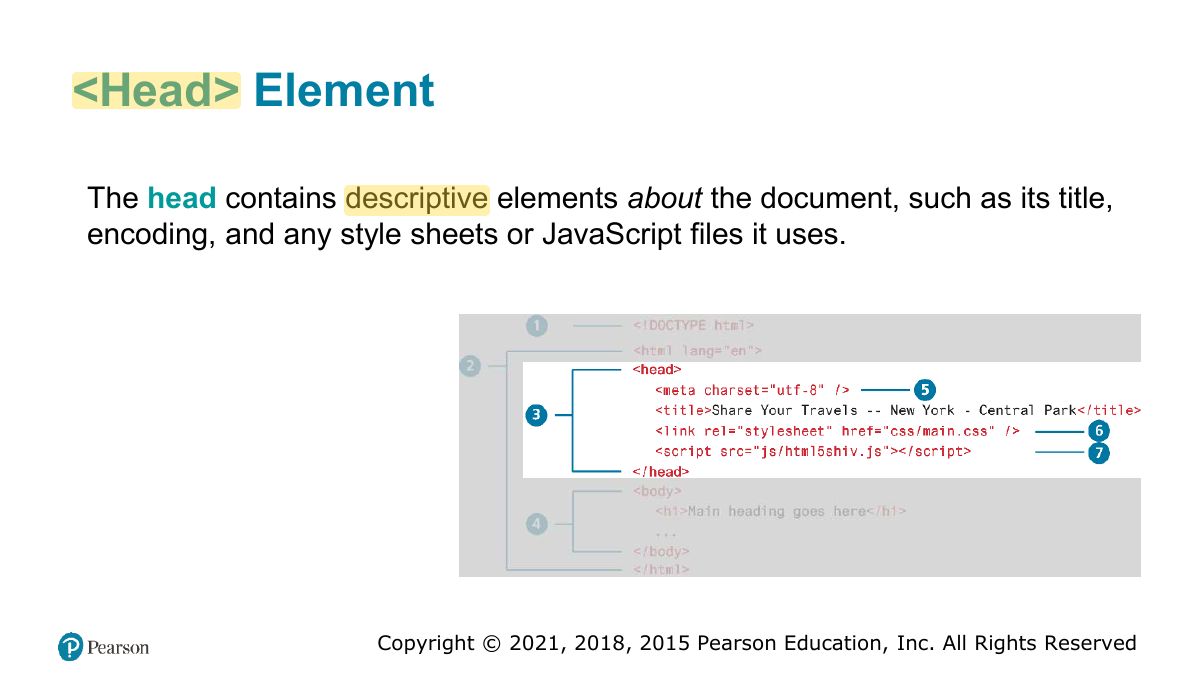
<Body> Element
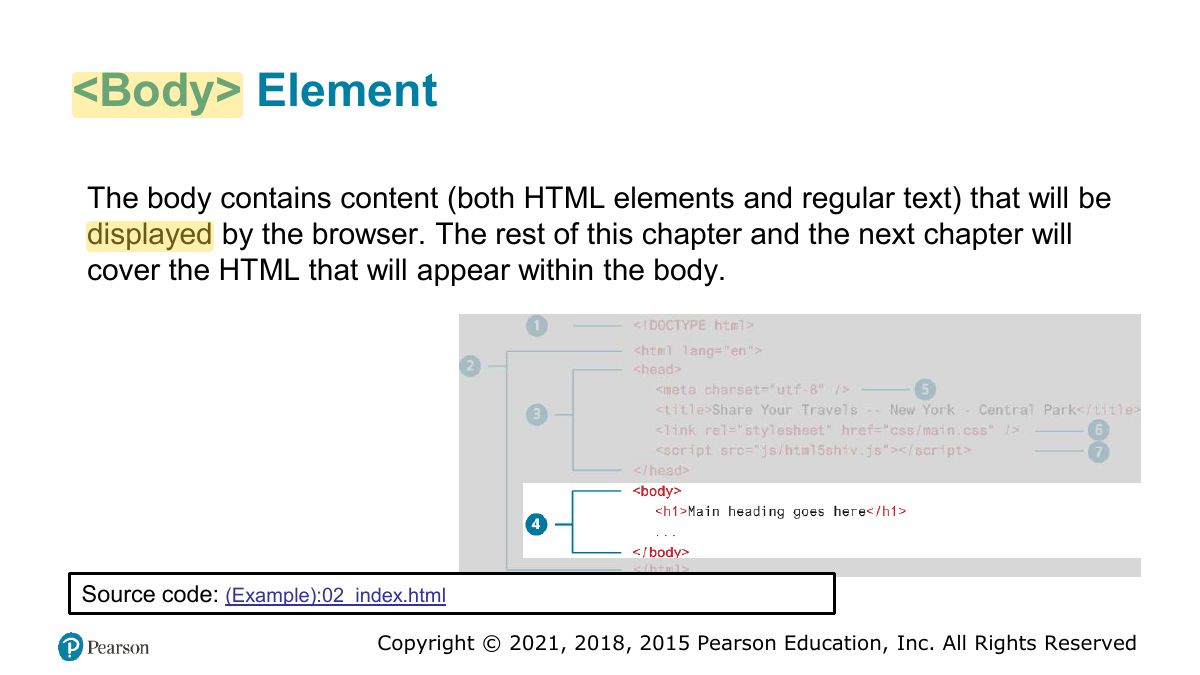
Nesting HTML Elements
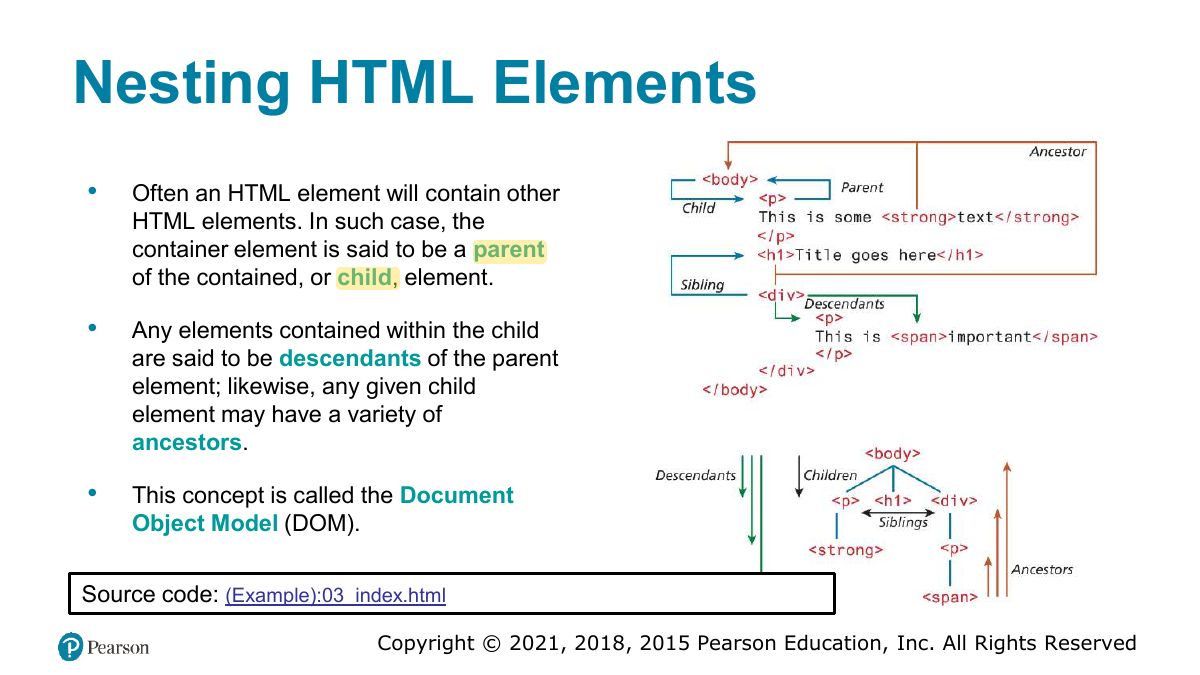
Notes
Nesting must be correct: close inner elements first: <p><strong>…</strong></p>.
Correct Nesting
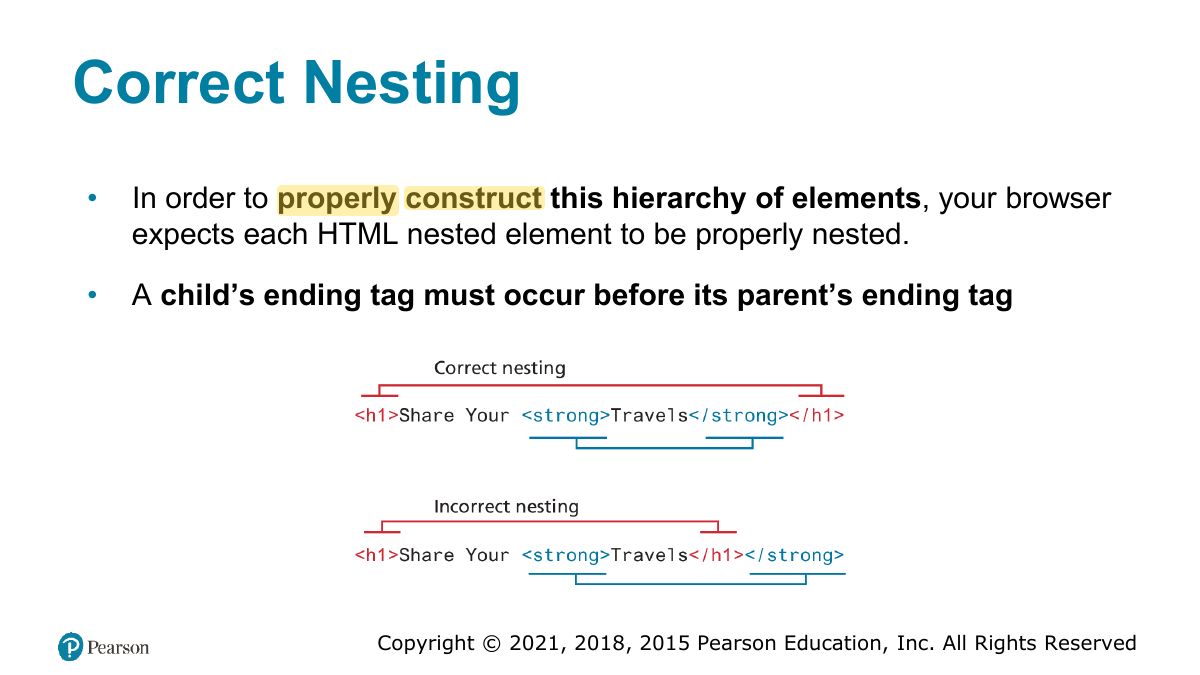
Quick Tour of HTML Elements
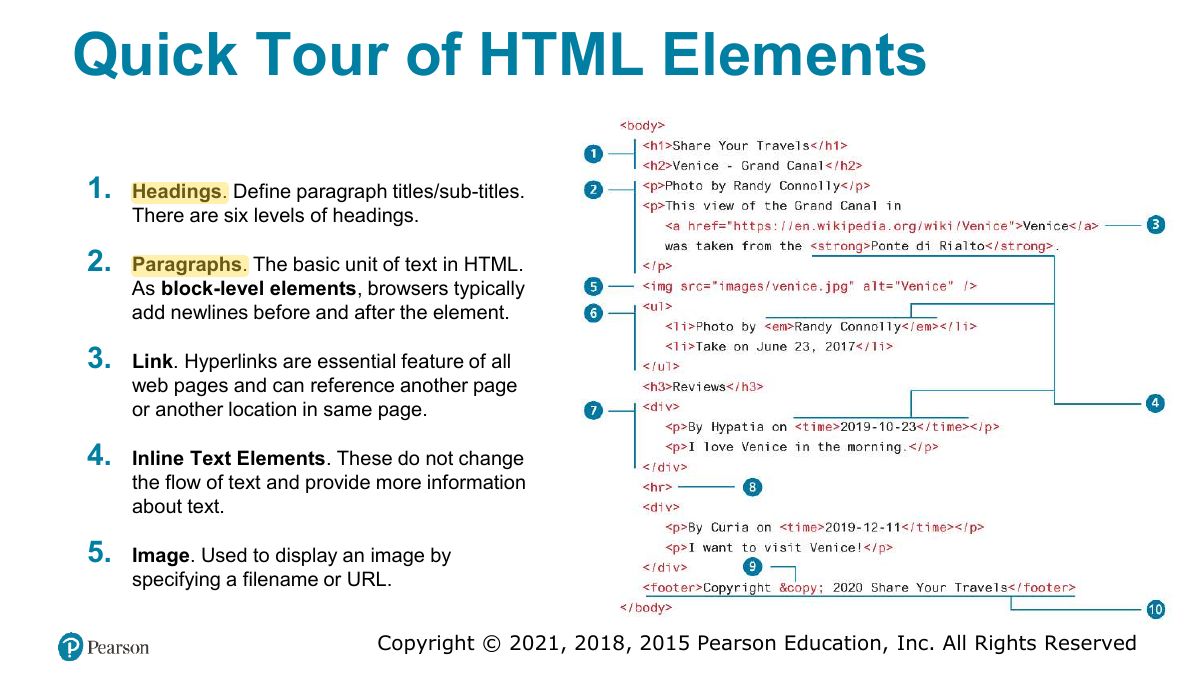
Quick Tour of HTML Elements (cont)
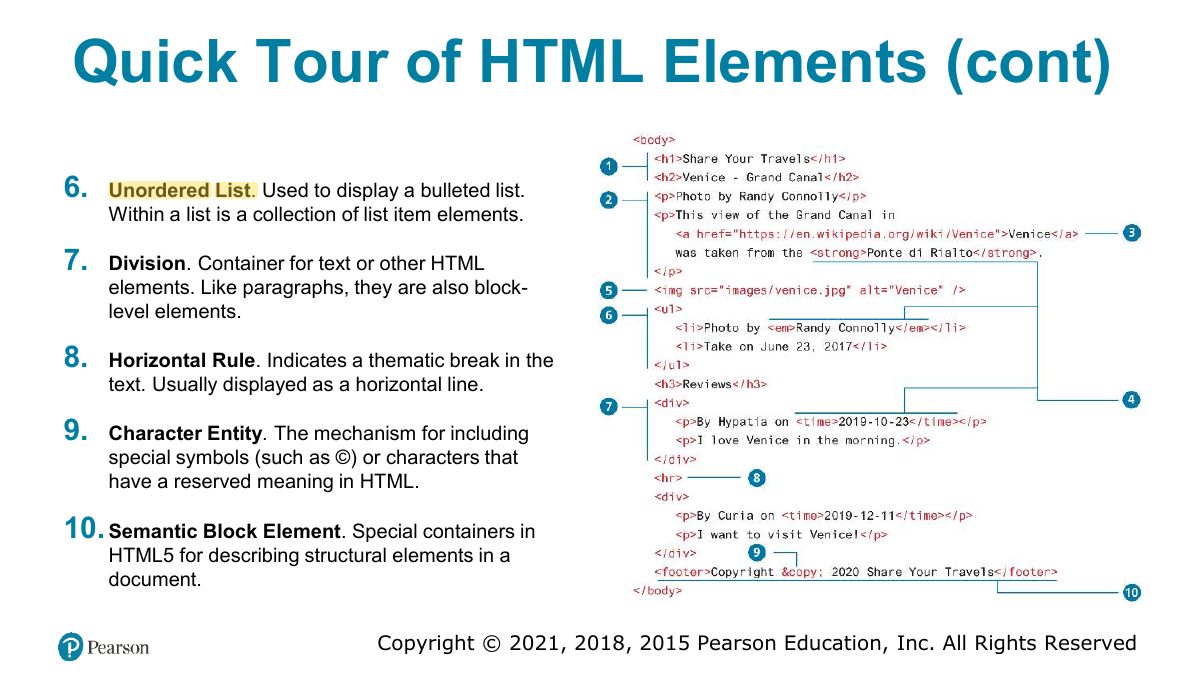
In the browser
Headings
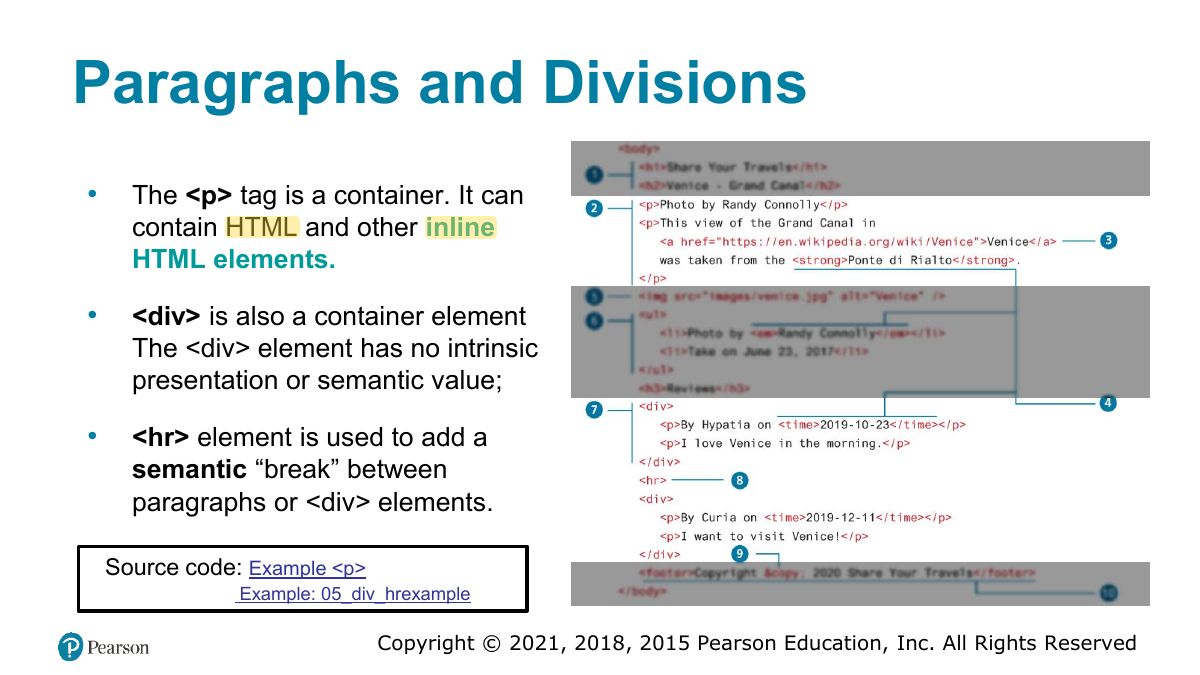
Paragraphs and Divisions
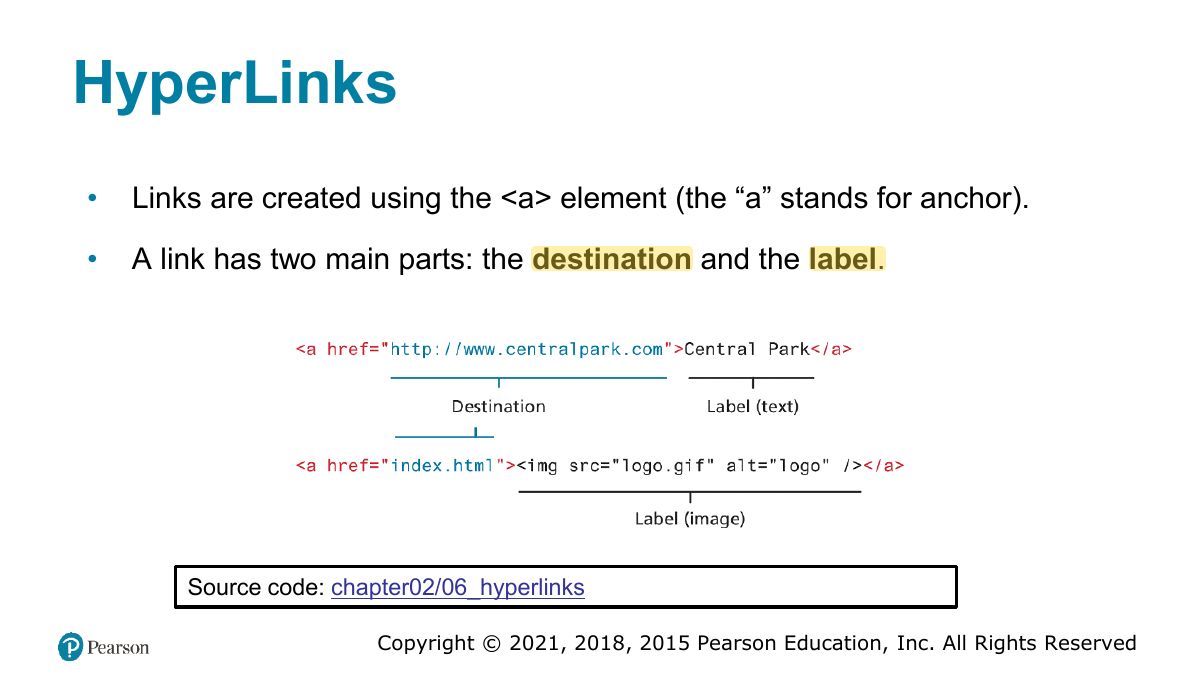
HyperLinks
Notes
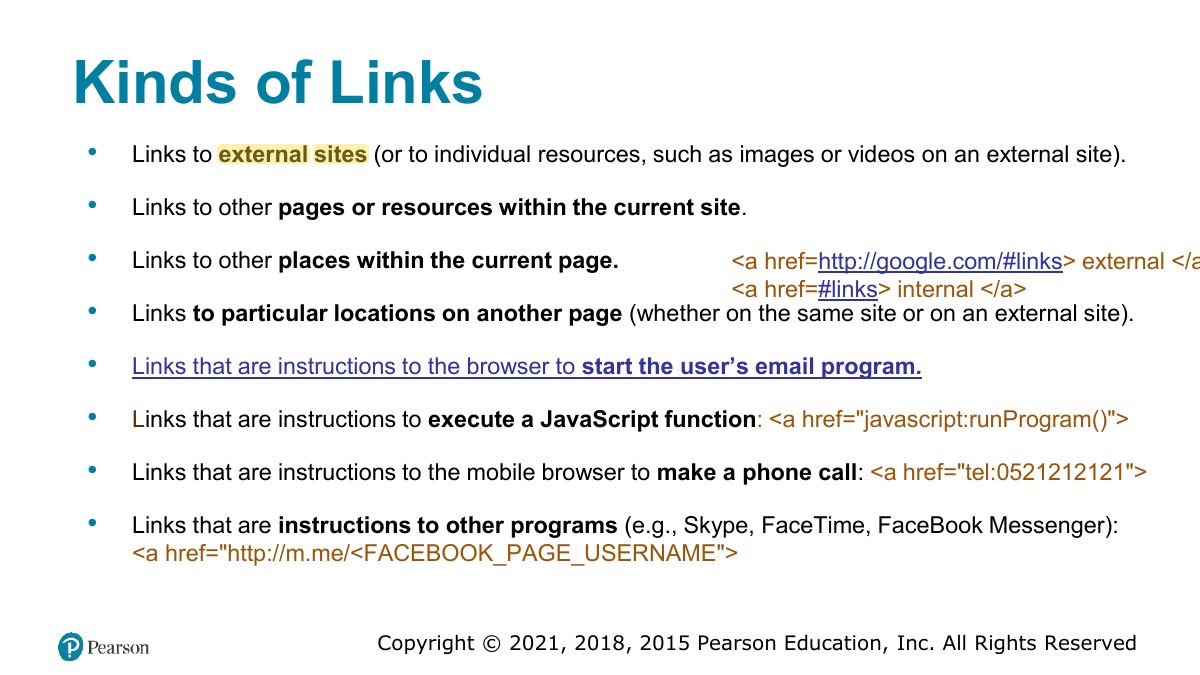
<a href="…">: links to pages, sections (#id), email (mailto:), files.
Kinds of Links
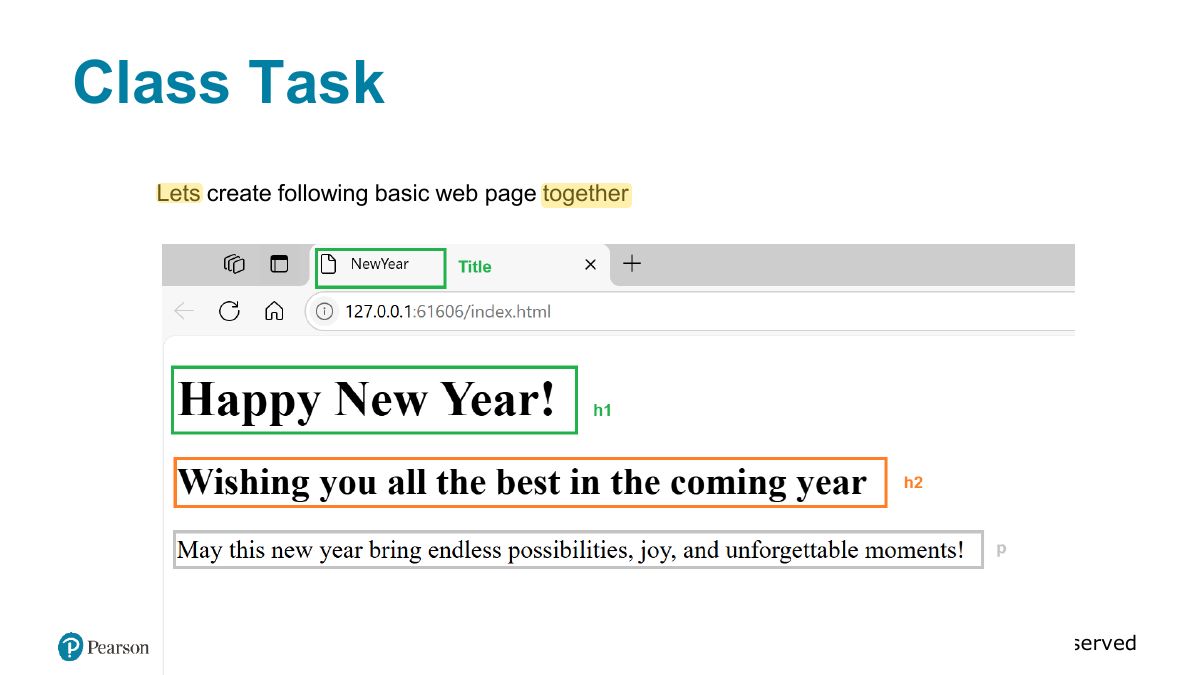
Class Task
Absolute and Relative URLs
Notes
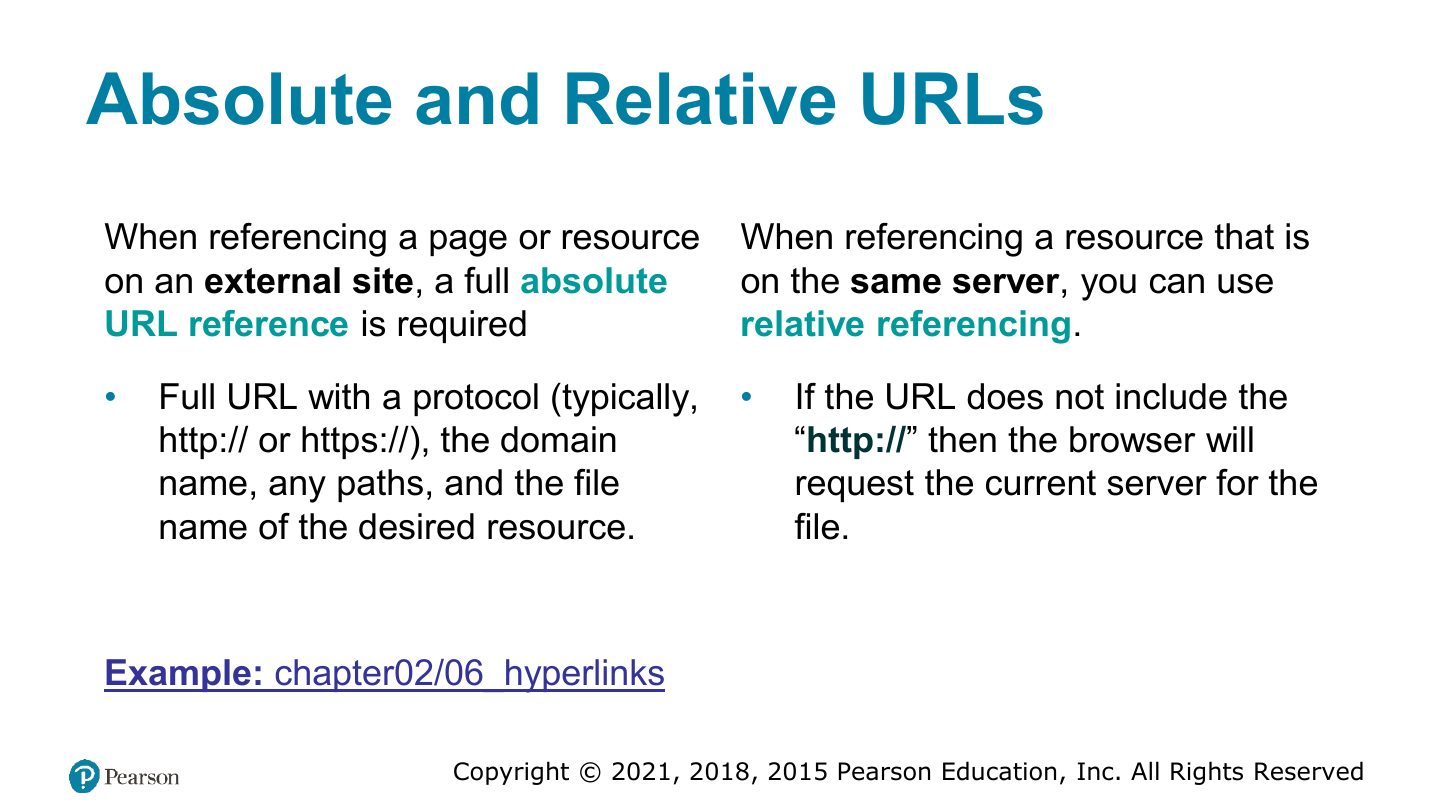
Absolute URL: full address (https://…). Relative: from the current location (images/a.png, ../index.html).
Exam angle
Relative URLs
Inline Text Elements
Images
Notes
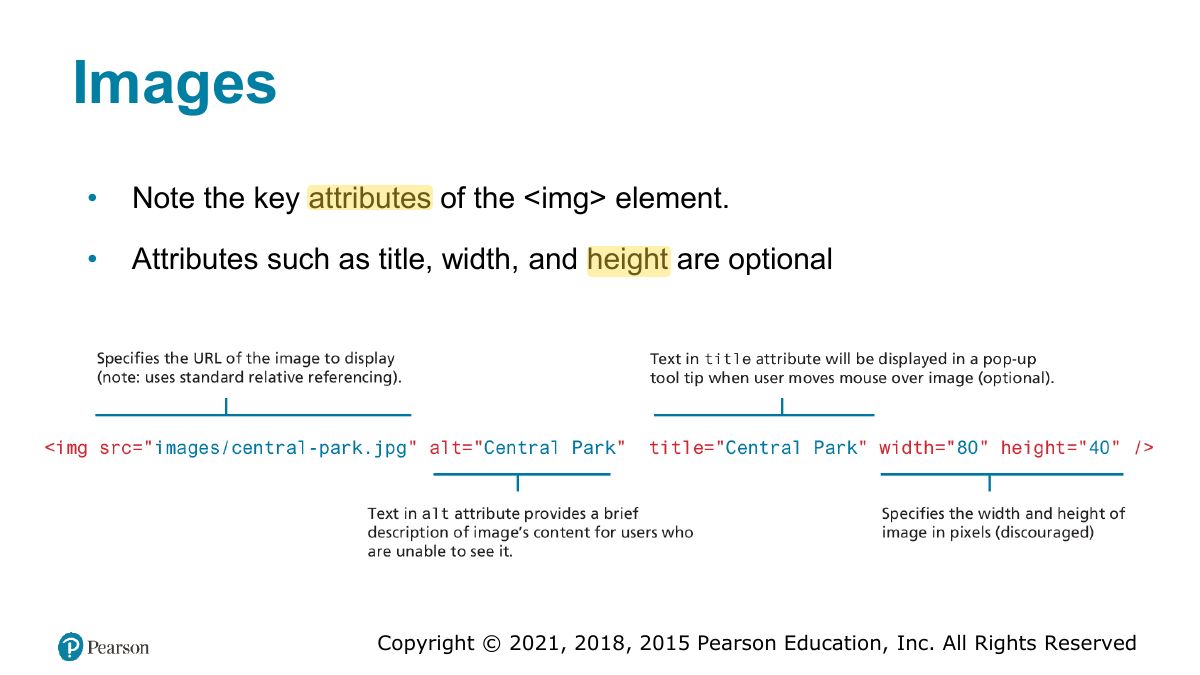
<img src alt>: the alt text is required for accessibility.
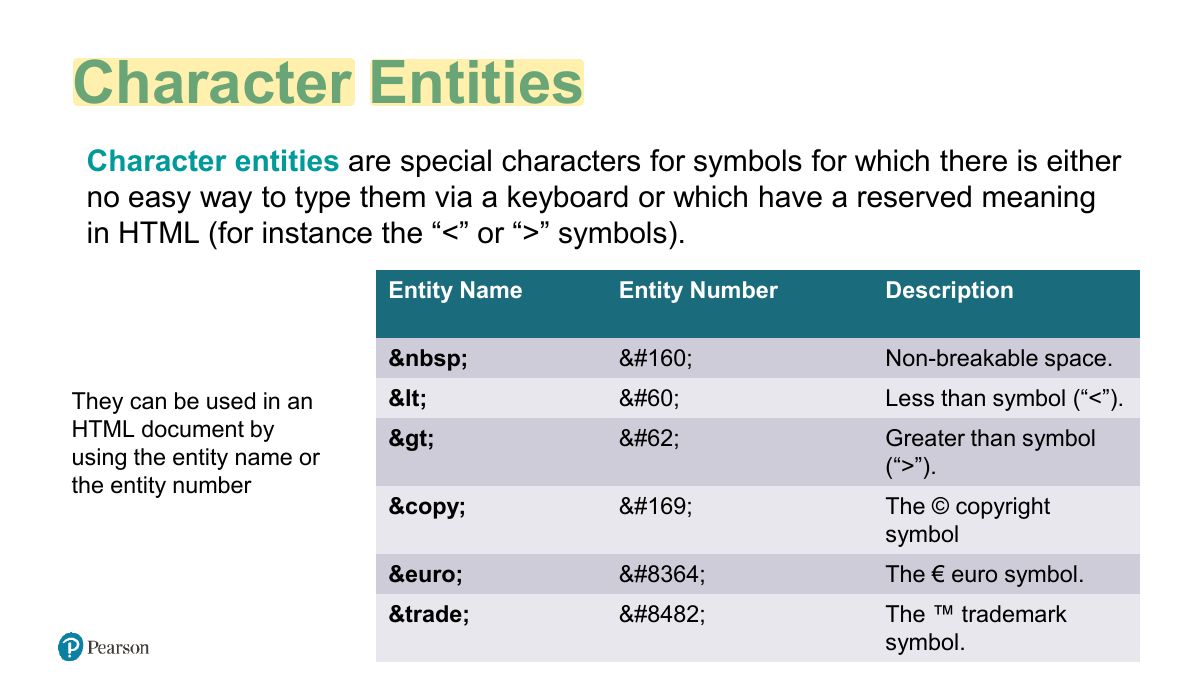
Character Entities
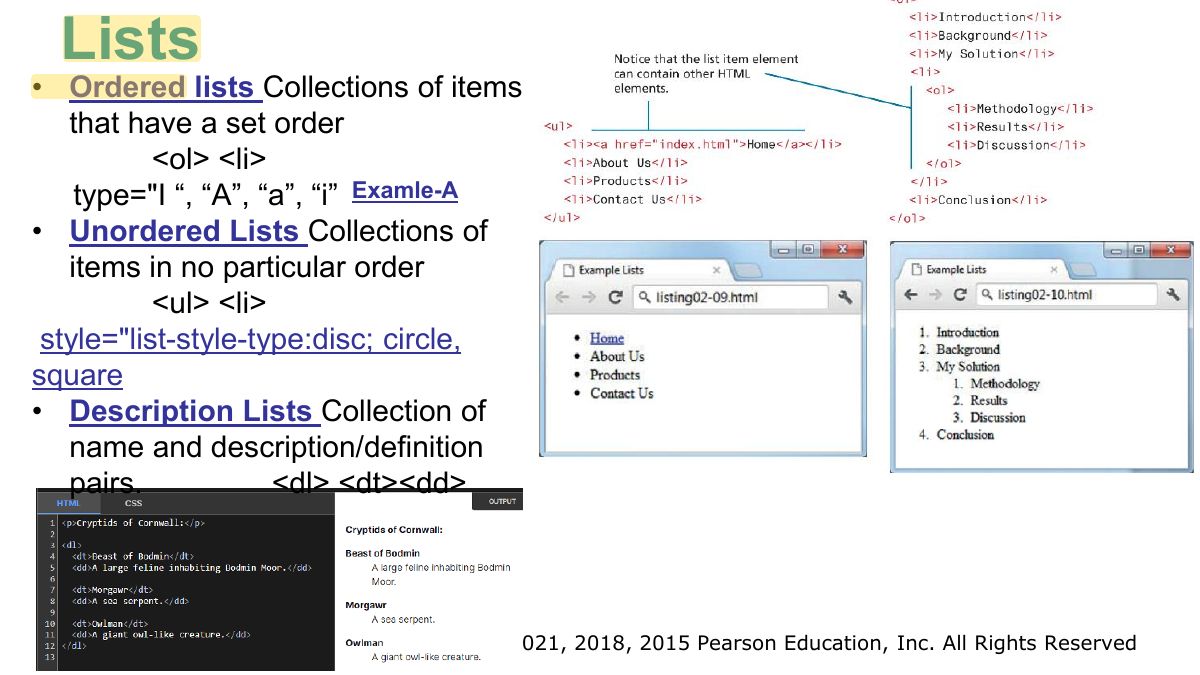
Lists
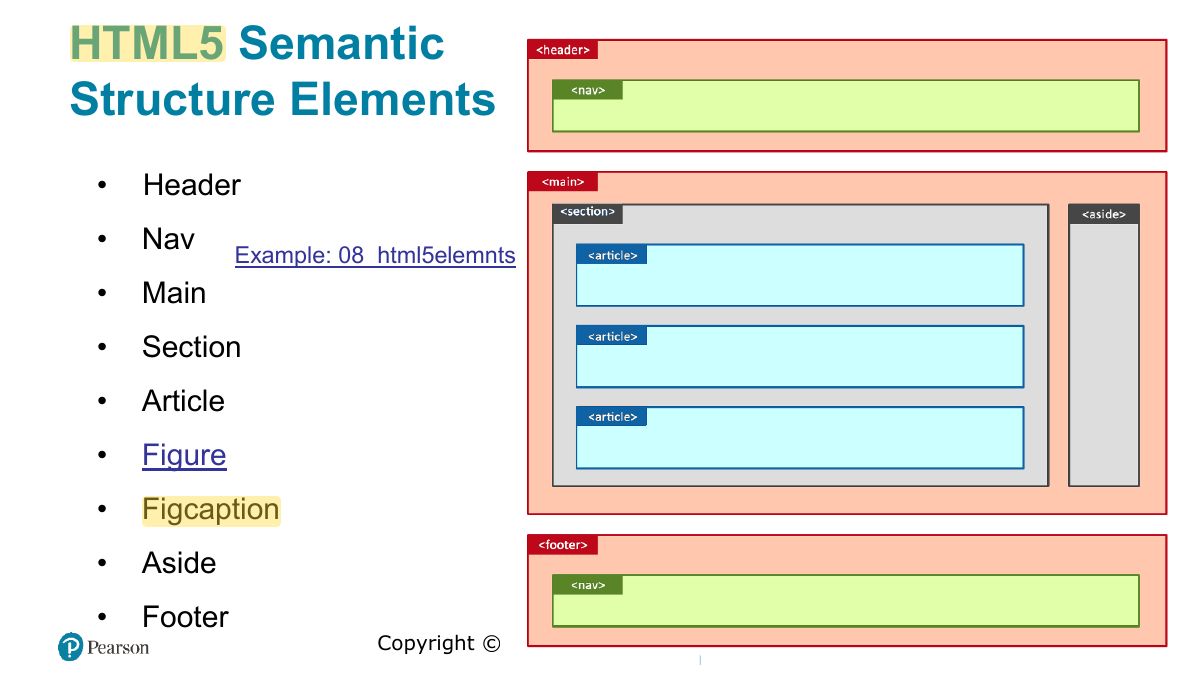
HTML5 Semantic Structure Elements
Exam angle
Which element is meant for a site’s main navigation links?
HTML5 Semantic Structure
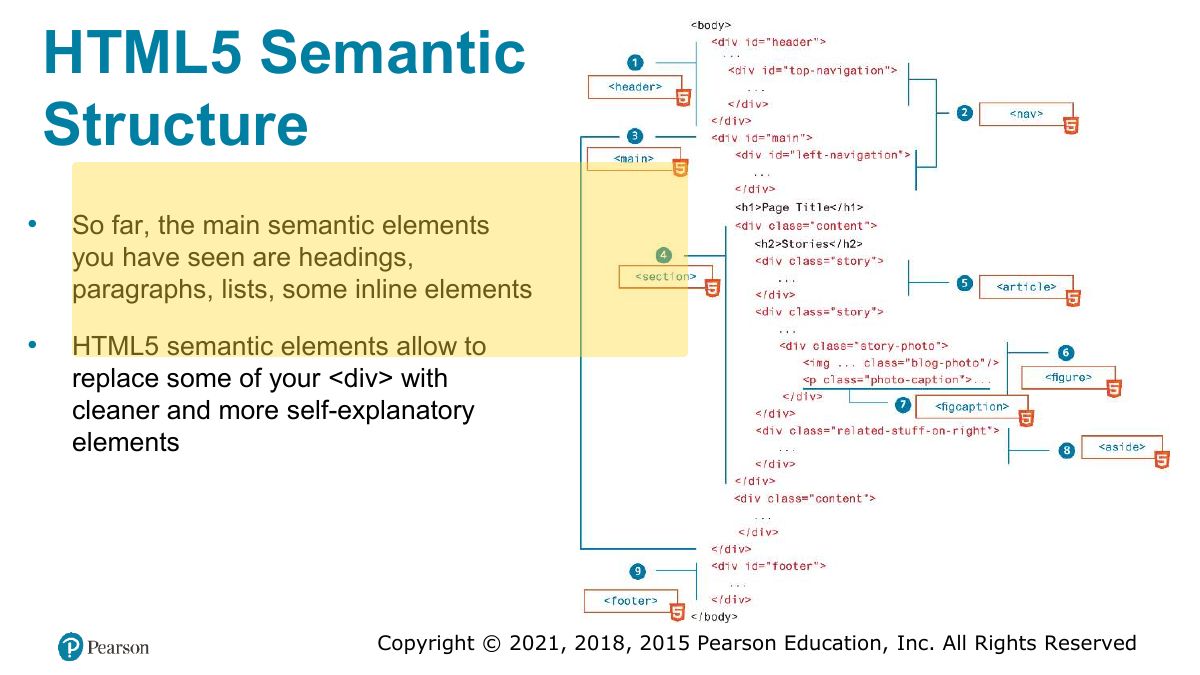
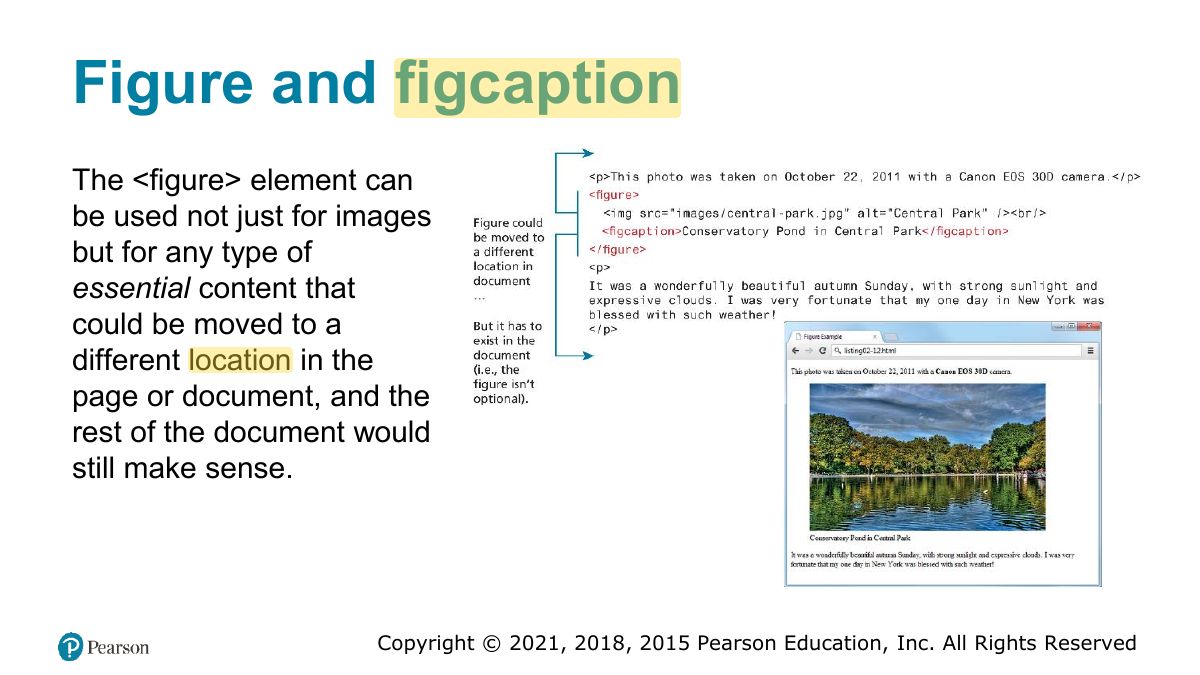
and figcaption
Home Task
Fundamentals of Web Development
In this chapter you will learn . . .
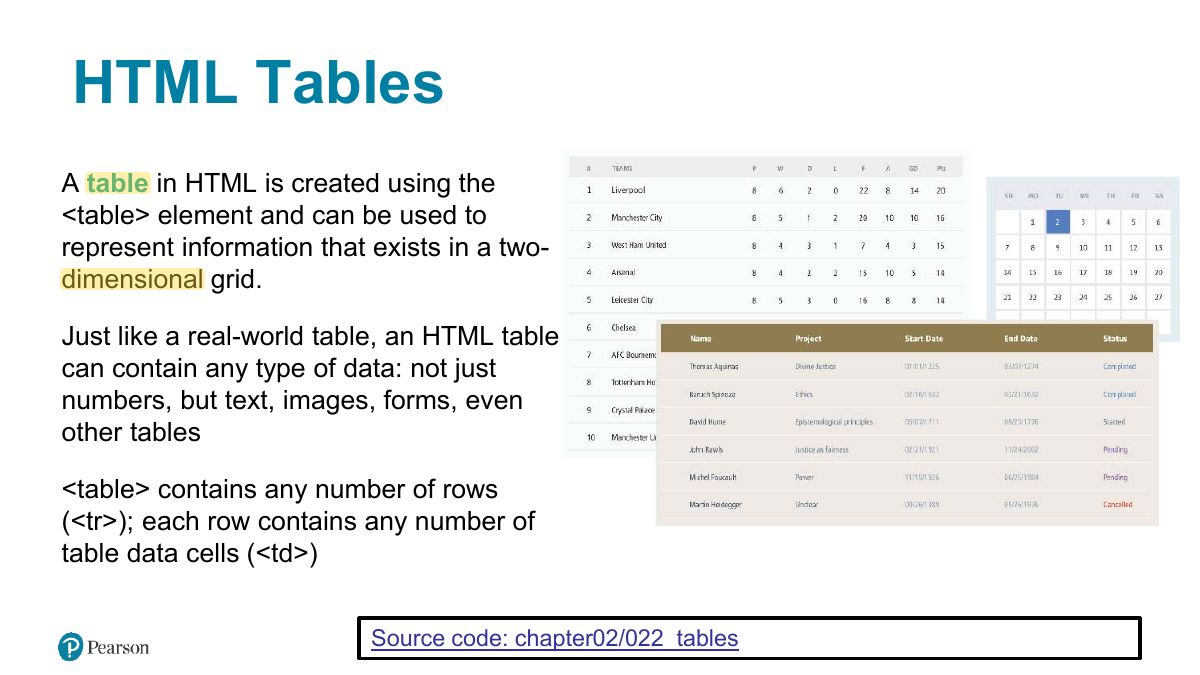
HTML Tables
Notes
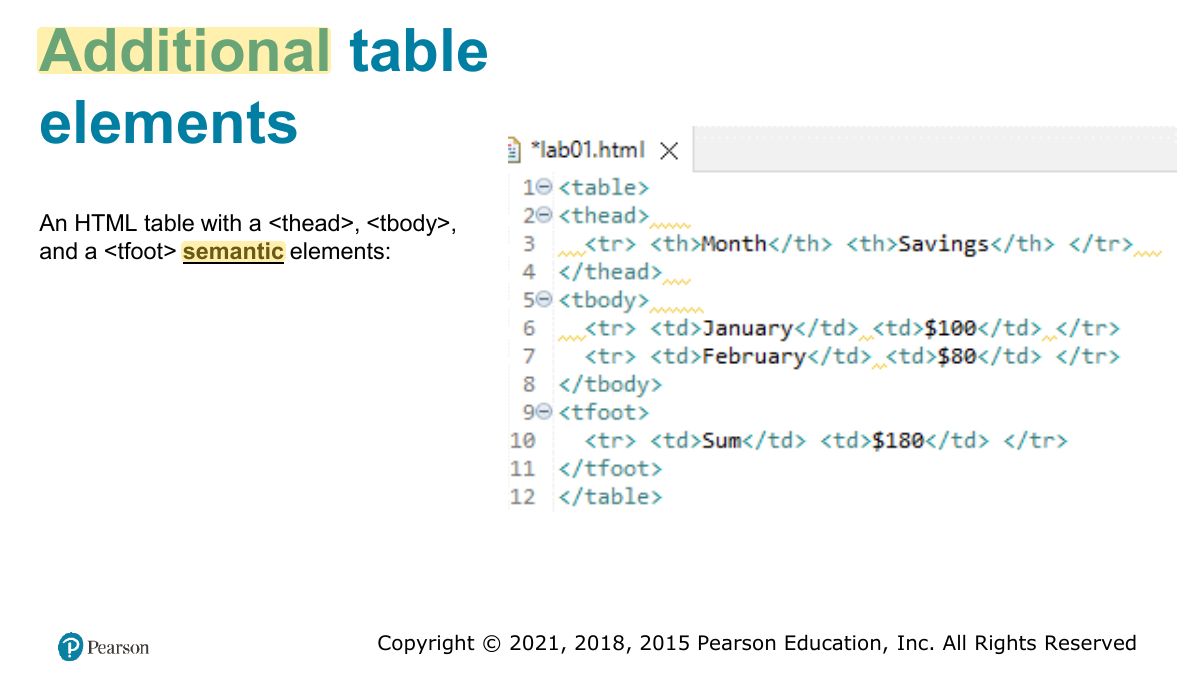
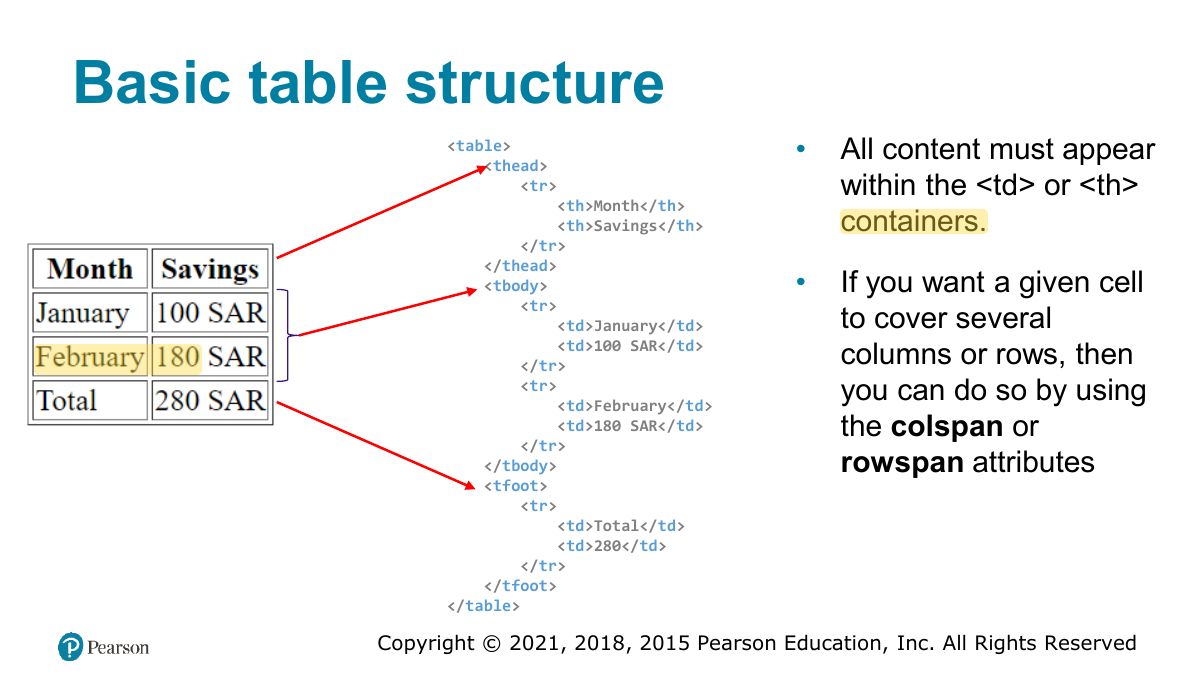
Tables: <table>, <tr> rows, <th> headers, <td> cells; <thead>, <tbody>, <tfoot>, <caption>.
Additional table elements
Basic table structure
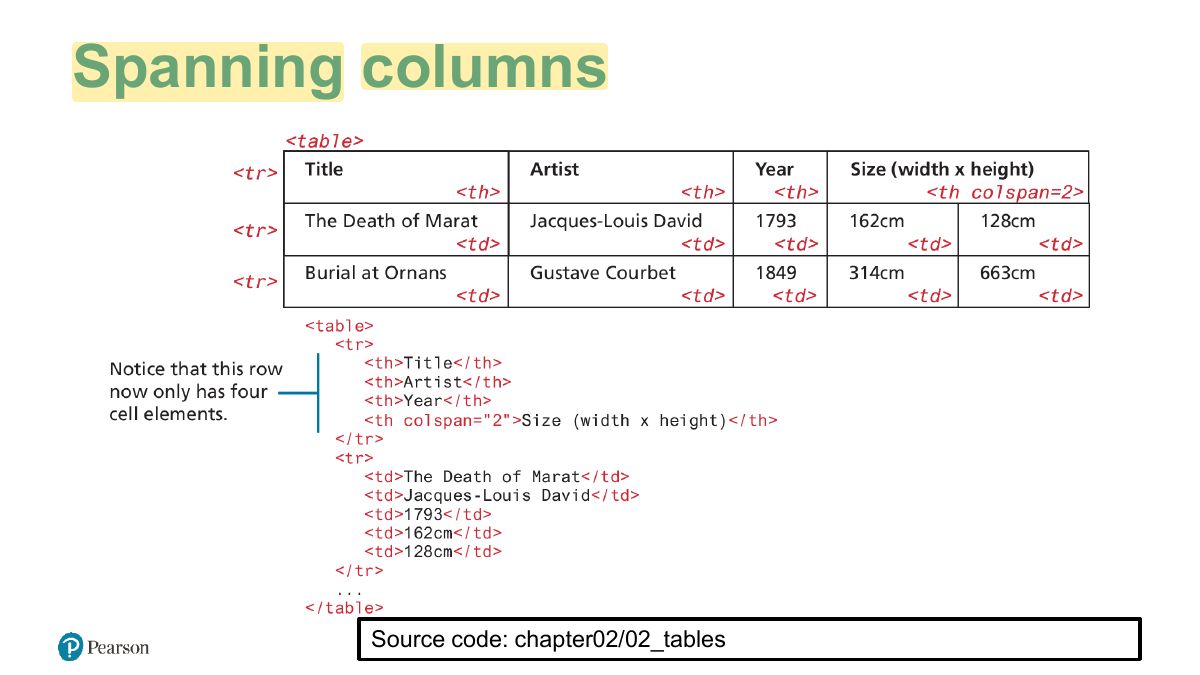
Spanning columns
Notes
colspan merges cells across columns; rowspan merges down rows.
Exam angle
To make a cell span two columns, use:
Colspan? Rowspan?
Introducing Forms
Form Structure
The <form> Element
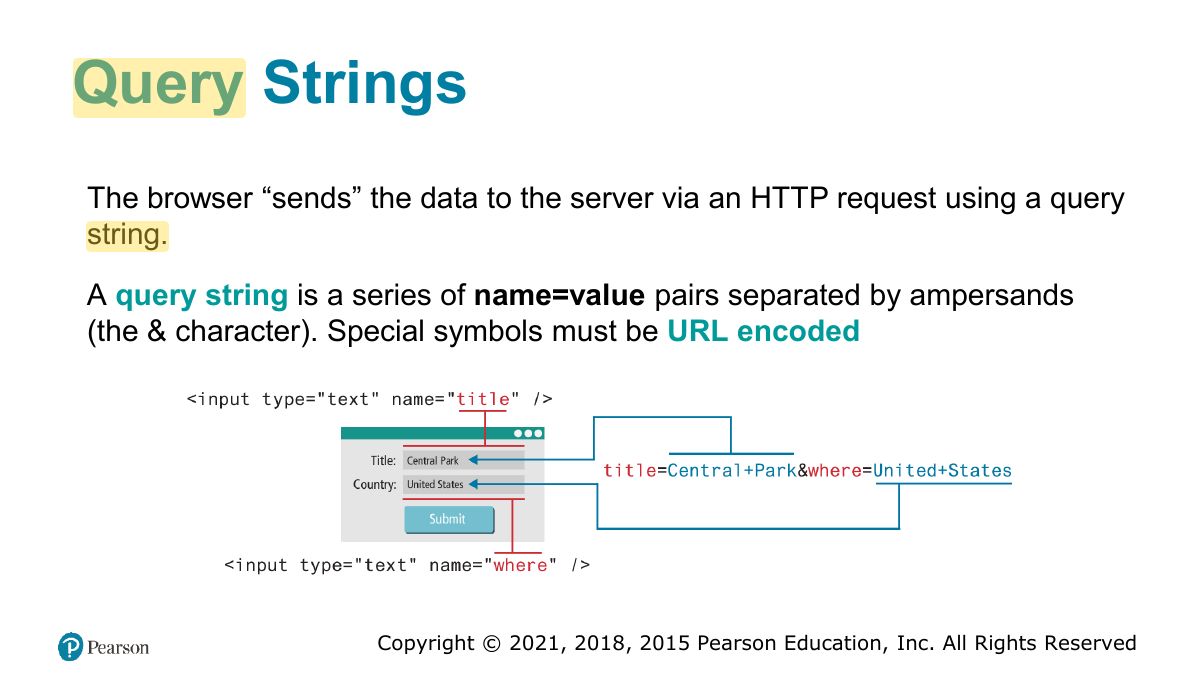
Query Strings
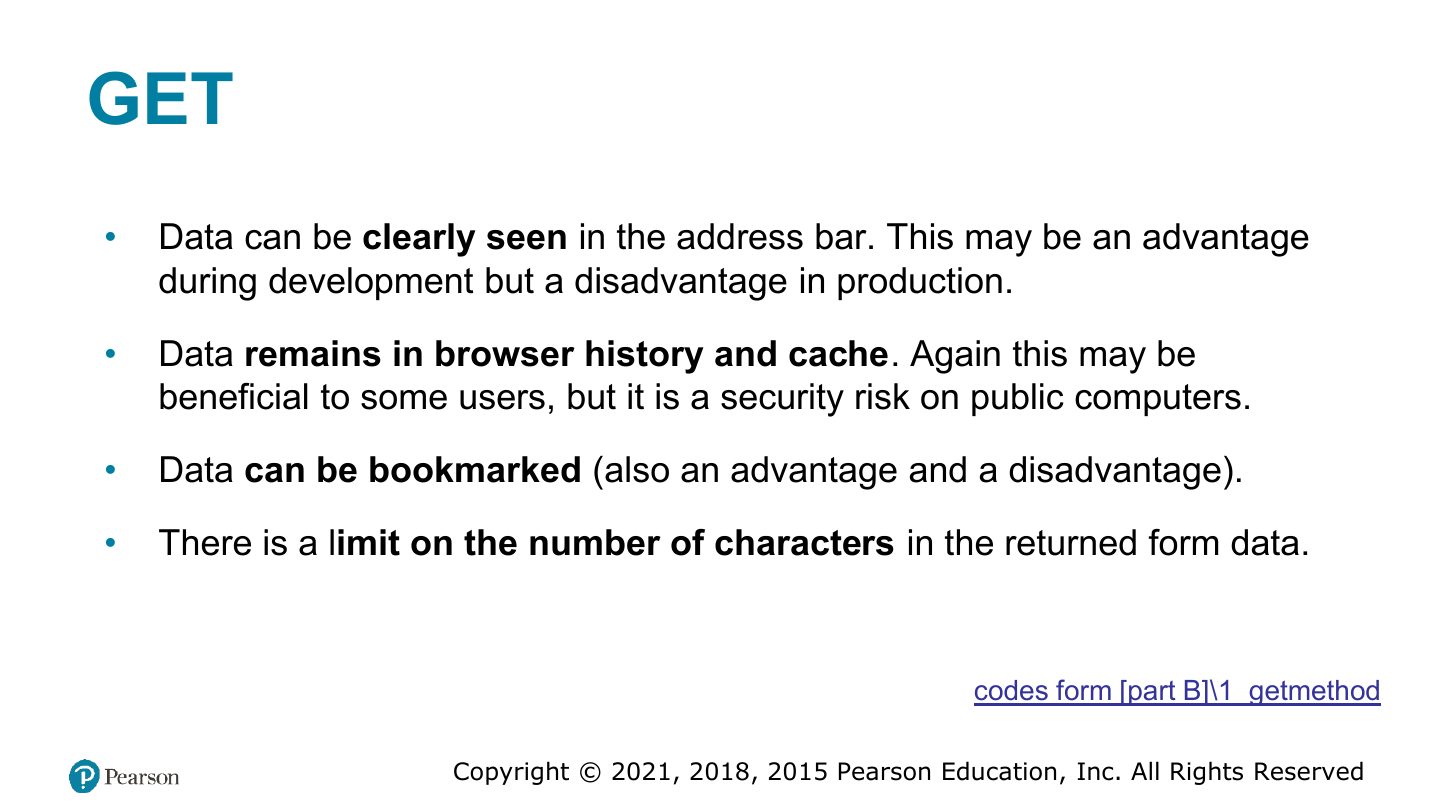
GET
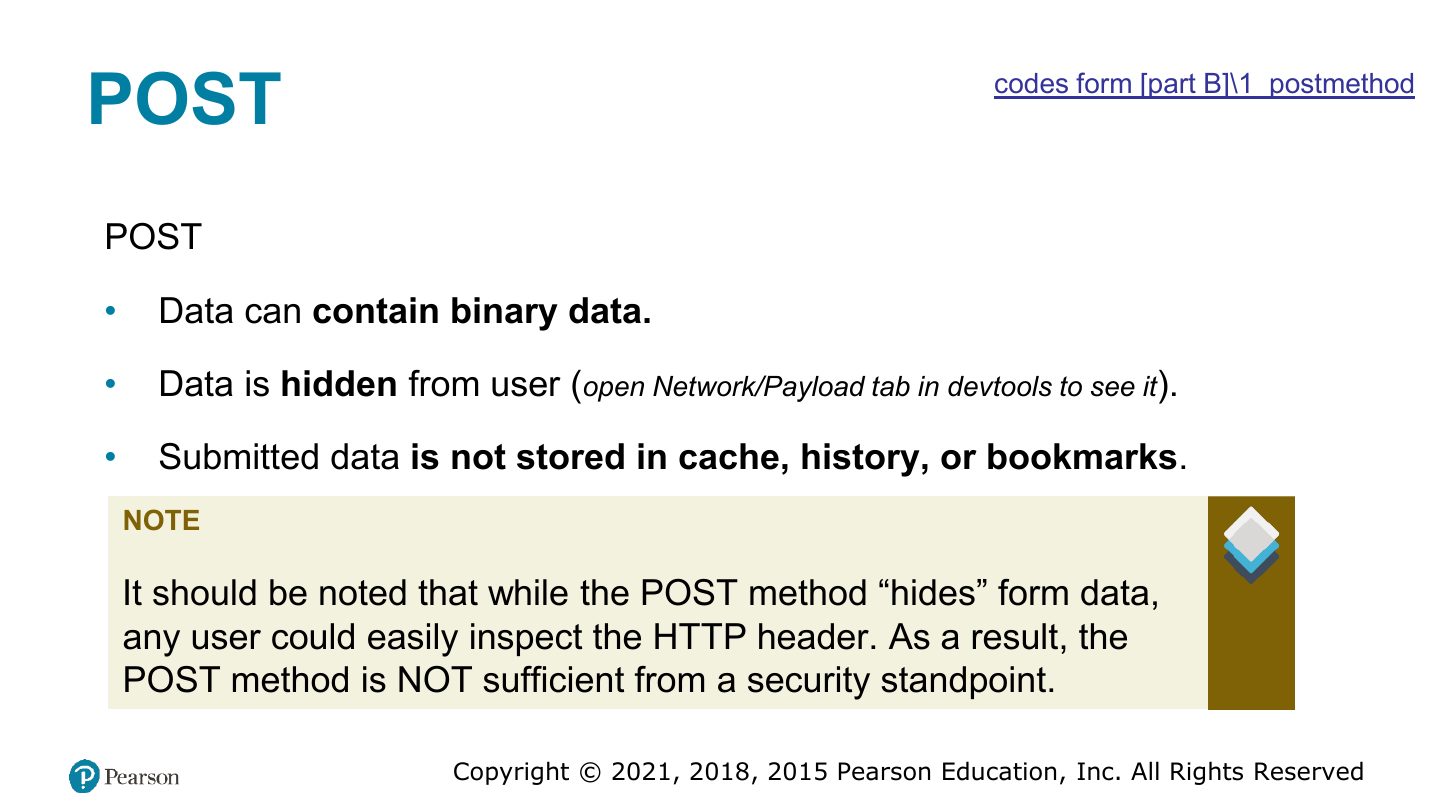
POST
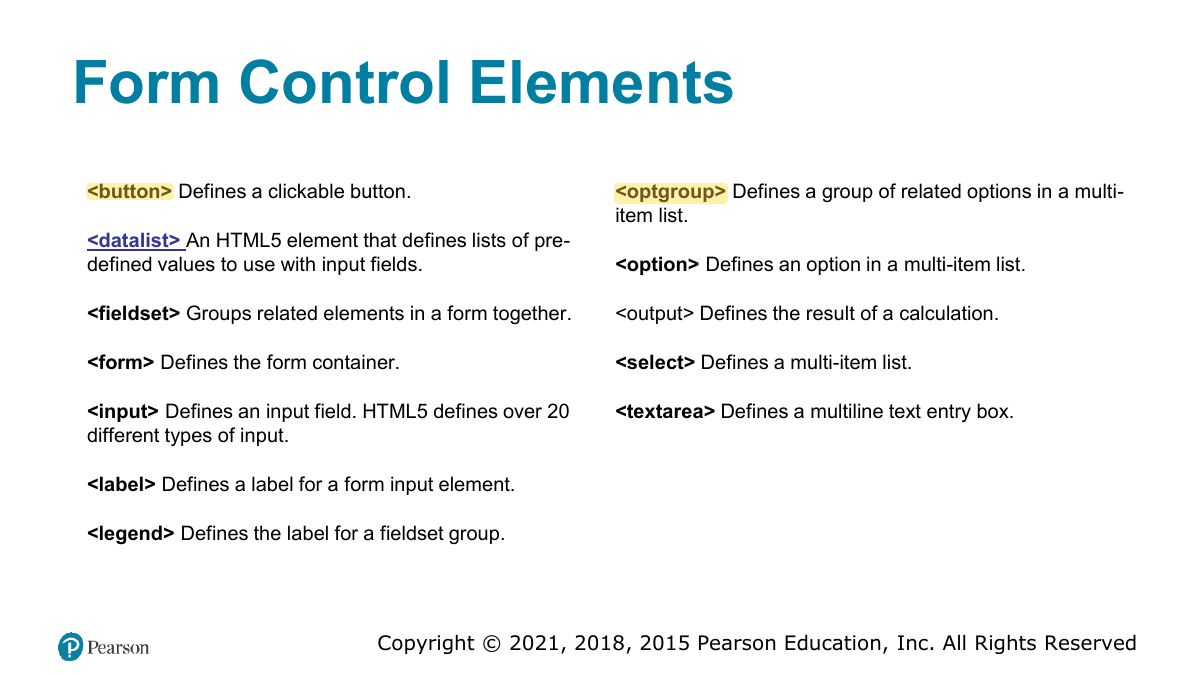
Form Control Elements
Notes
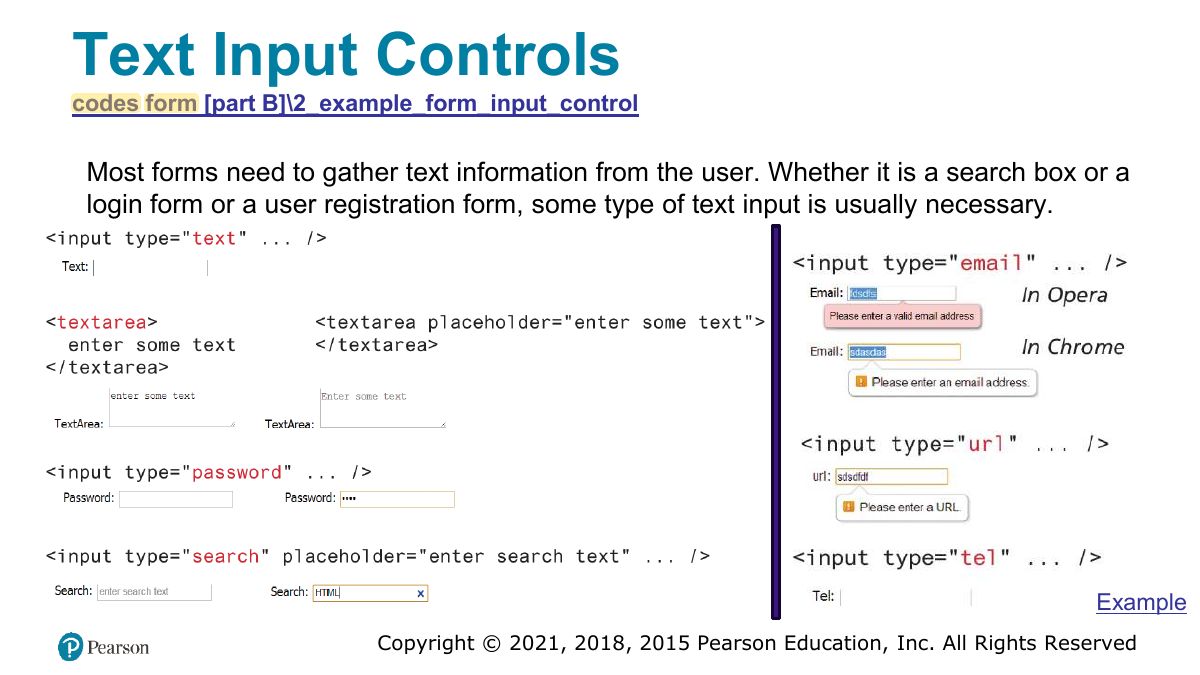
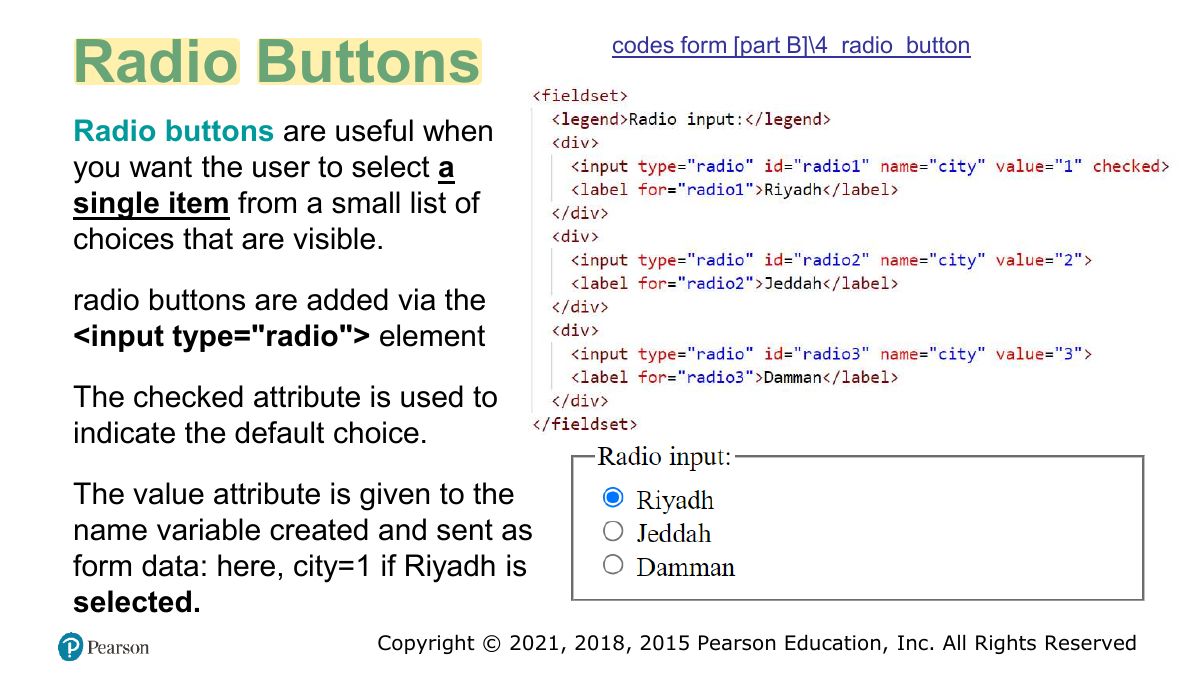
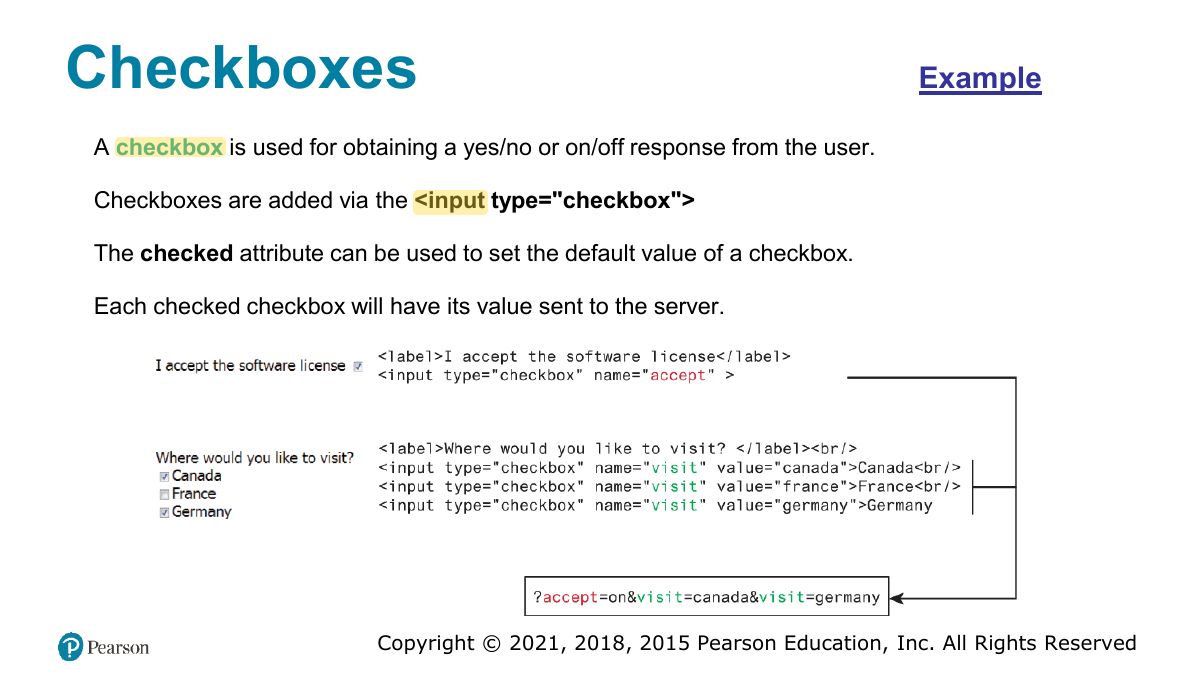
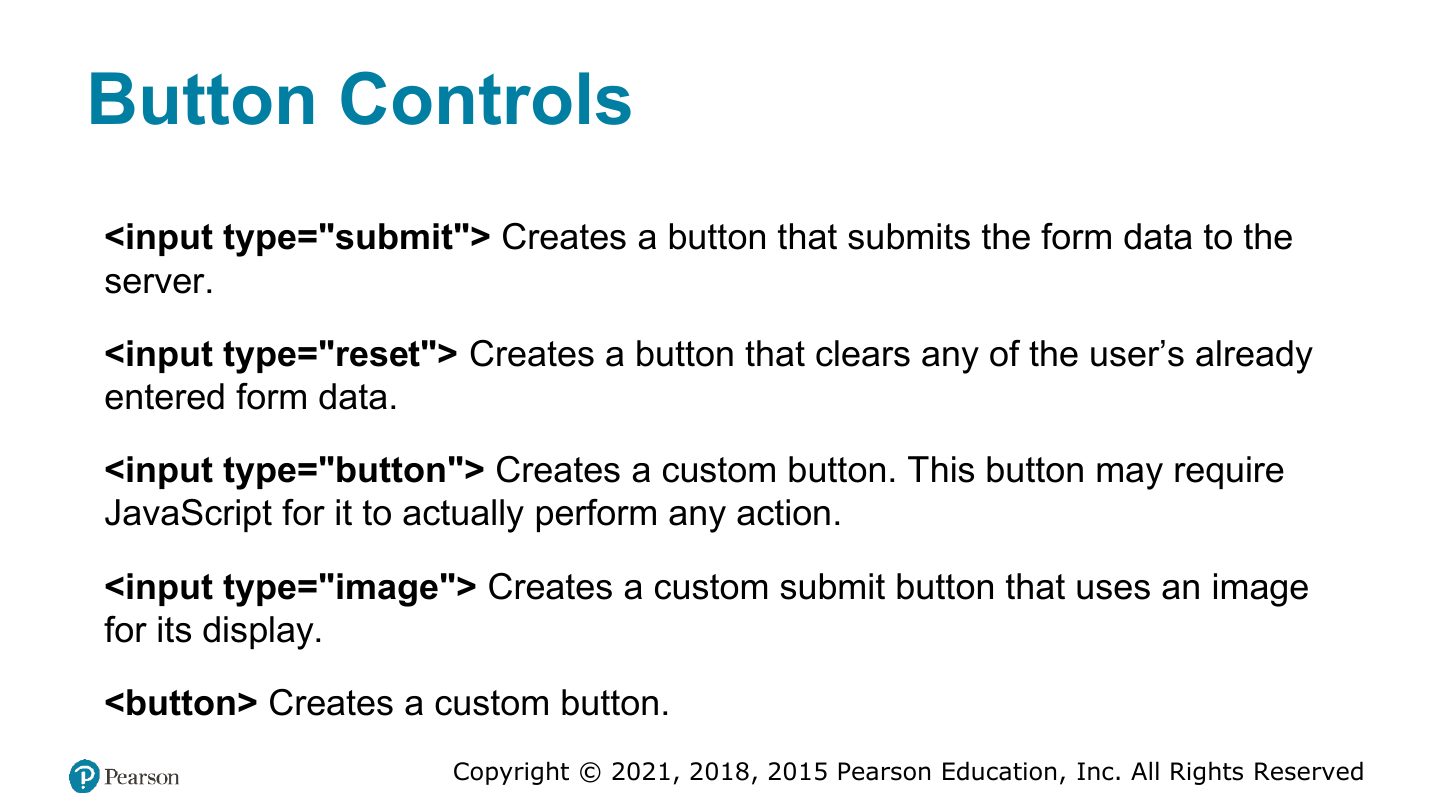
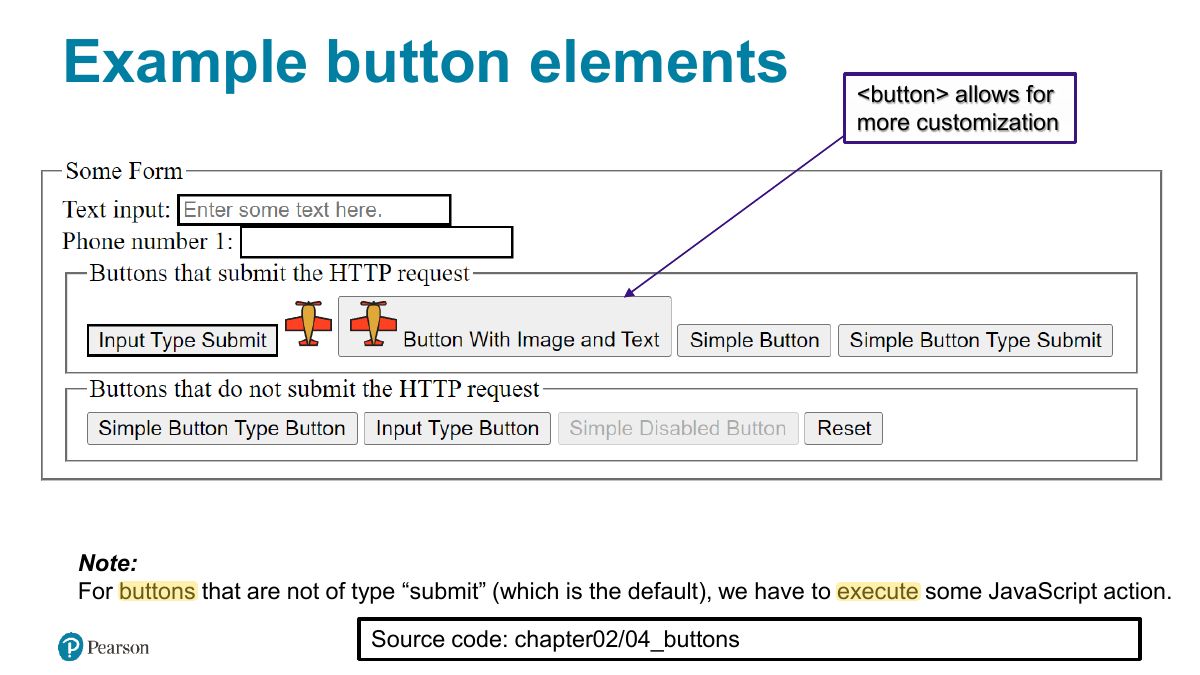
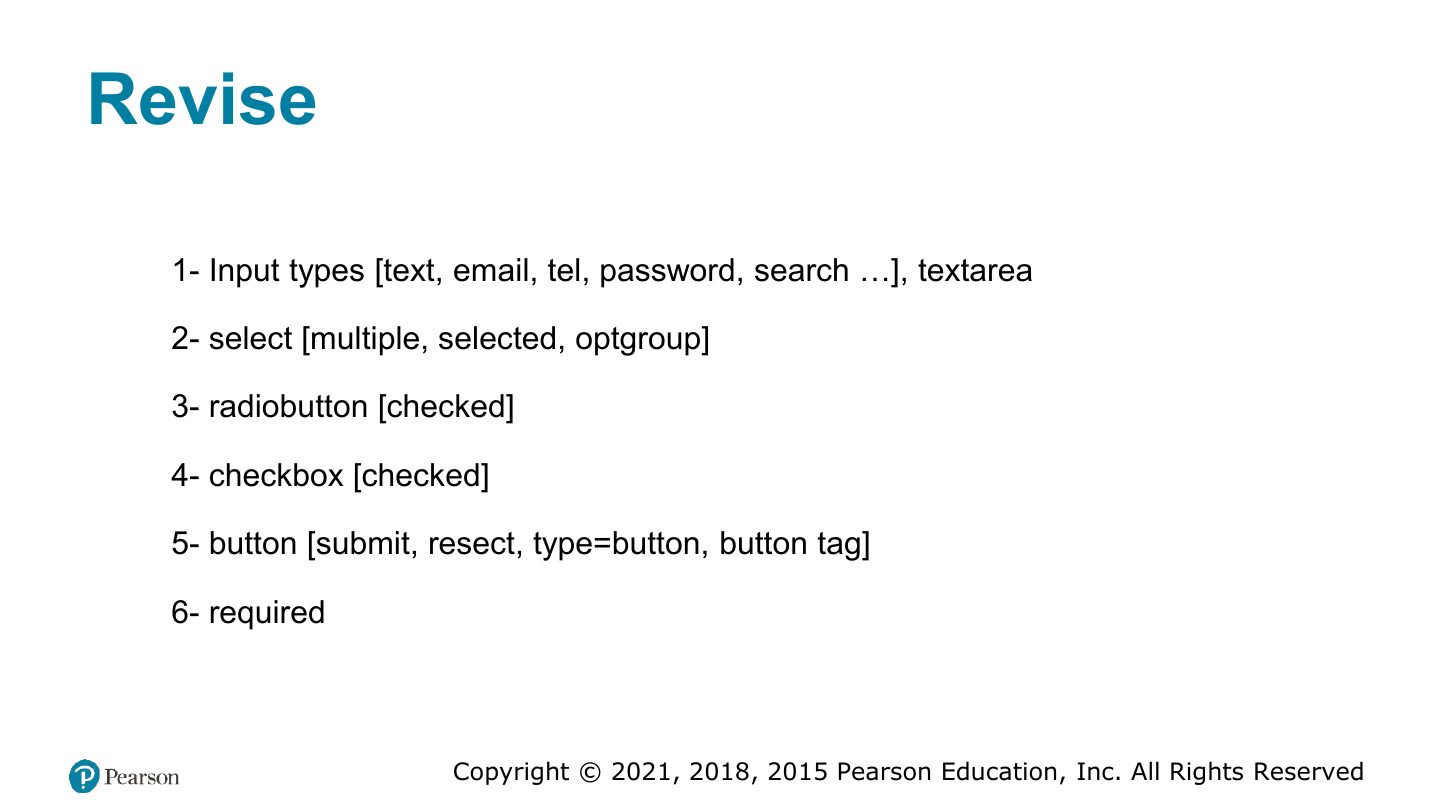
Controls: text, password, email, number, textarea, select/option, radio (one of a group: same name), checkbox (any number), submit/reset/button.
Trap Radio buttons in one group must share the same name attribute.
Exam angle
To let a user choose exactly one of several options, use:
Text Input Controls
Choice Controls
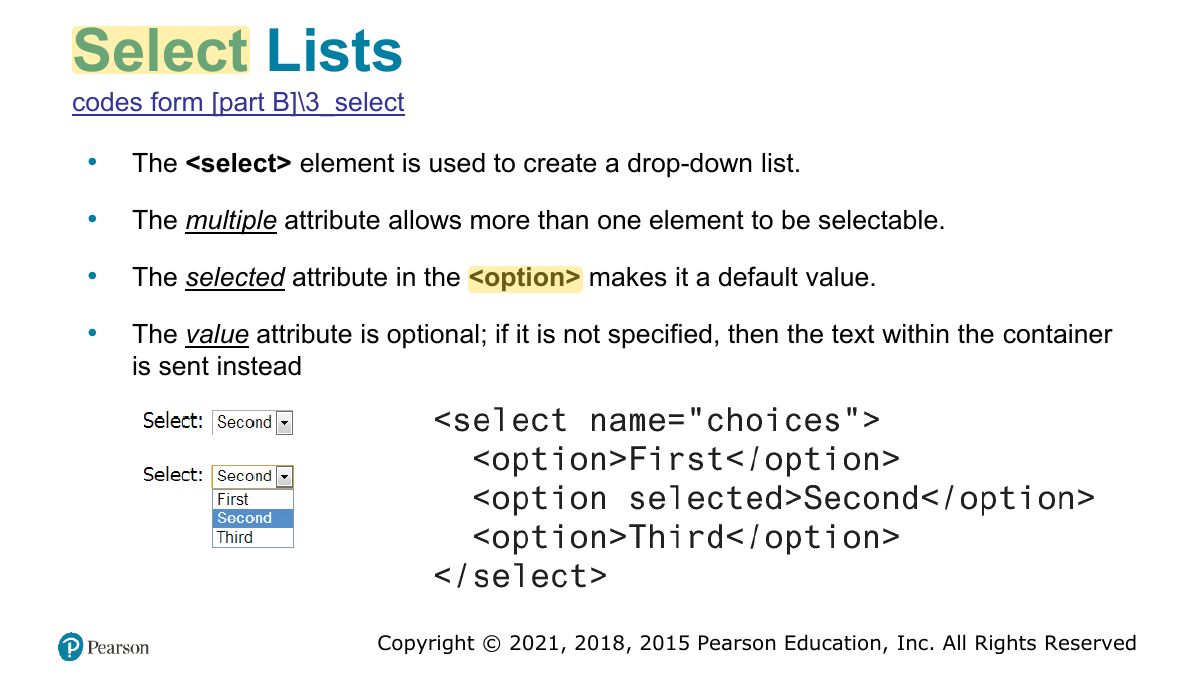
Select Lists
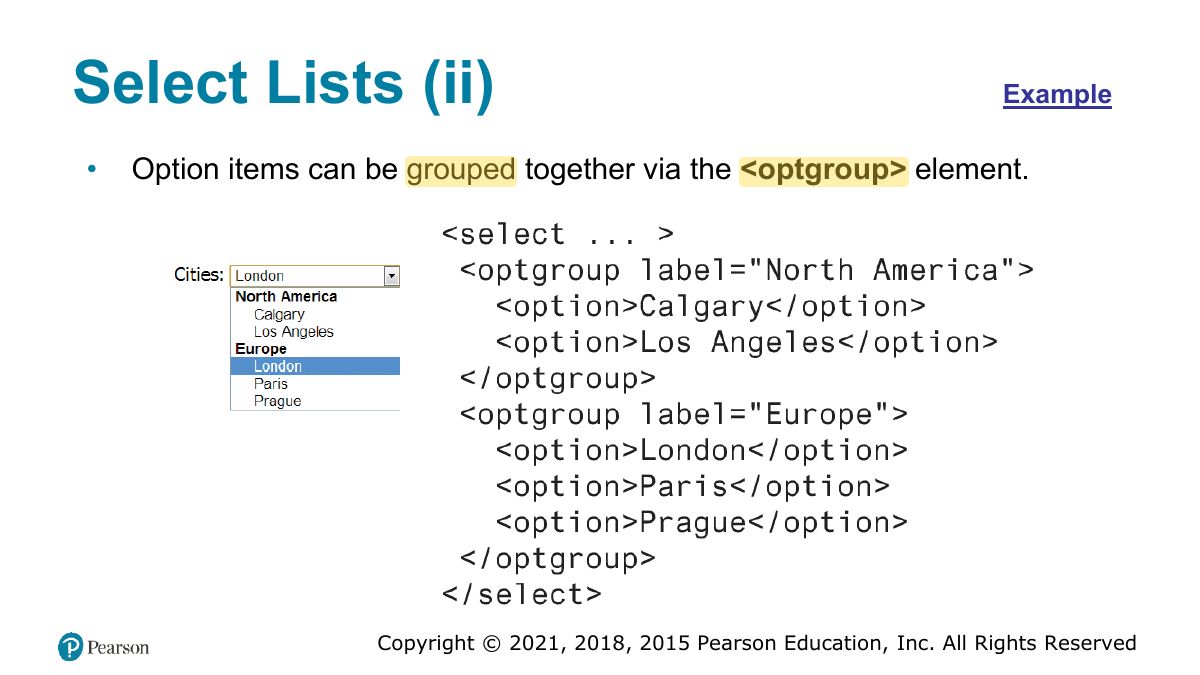
Select Lists (ii)
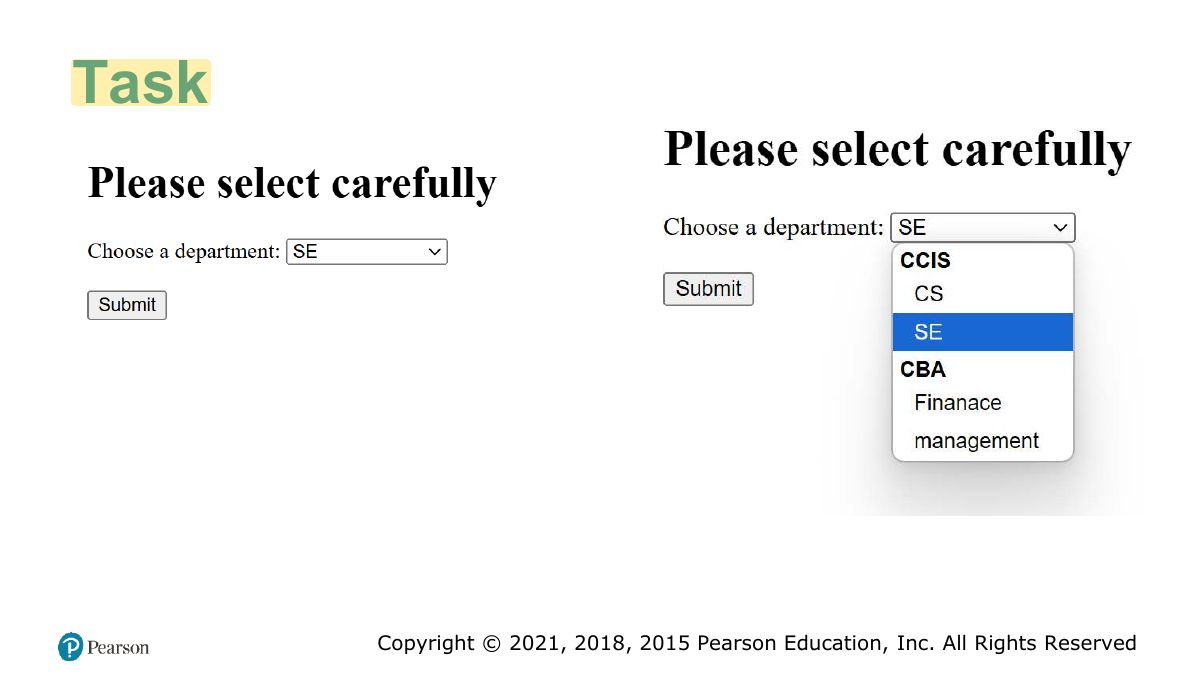
Task
Radio Buttons
Checkboxes
Button Controls
Example button elements
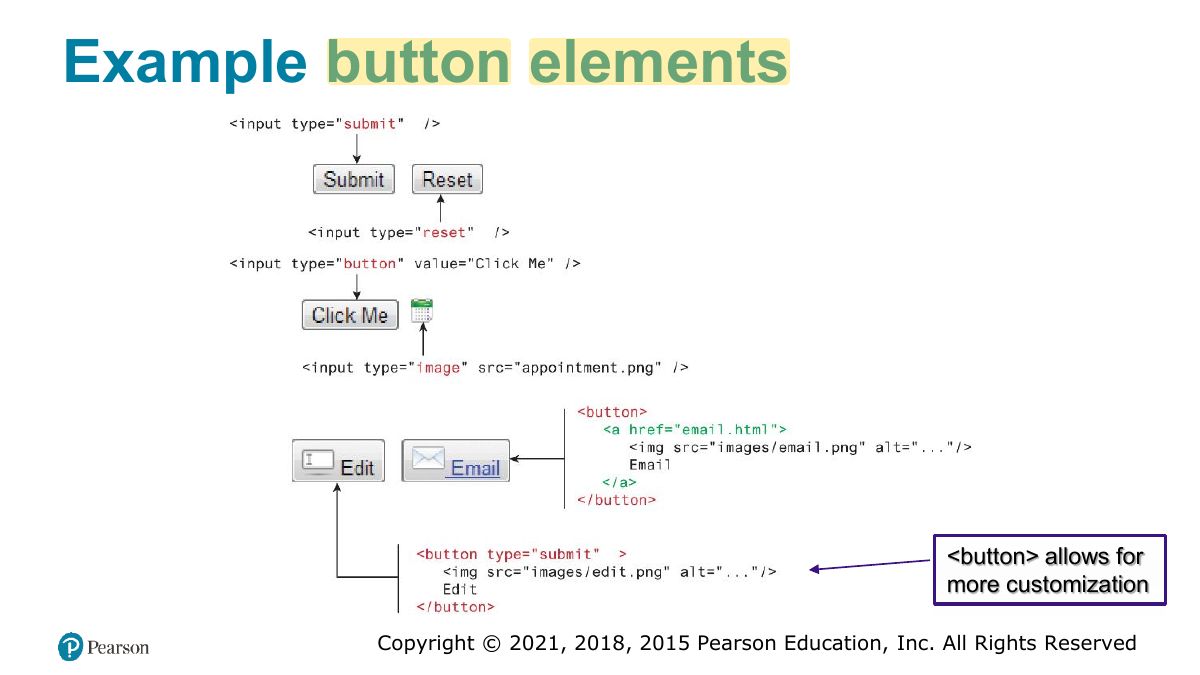
Example button elements
Revise
codes form [part B]\45_num_range_color
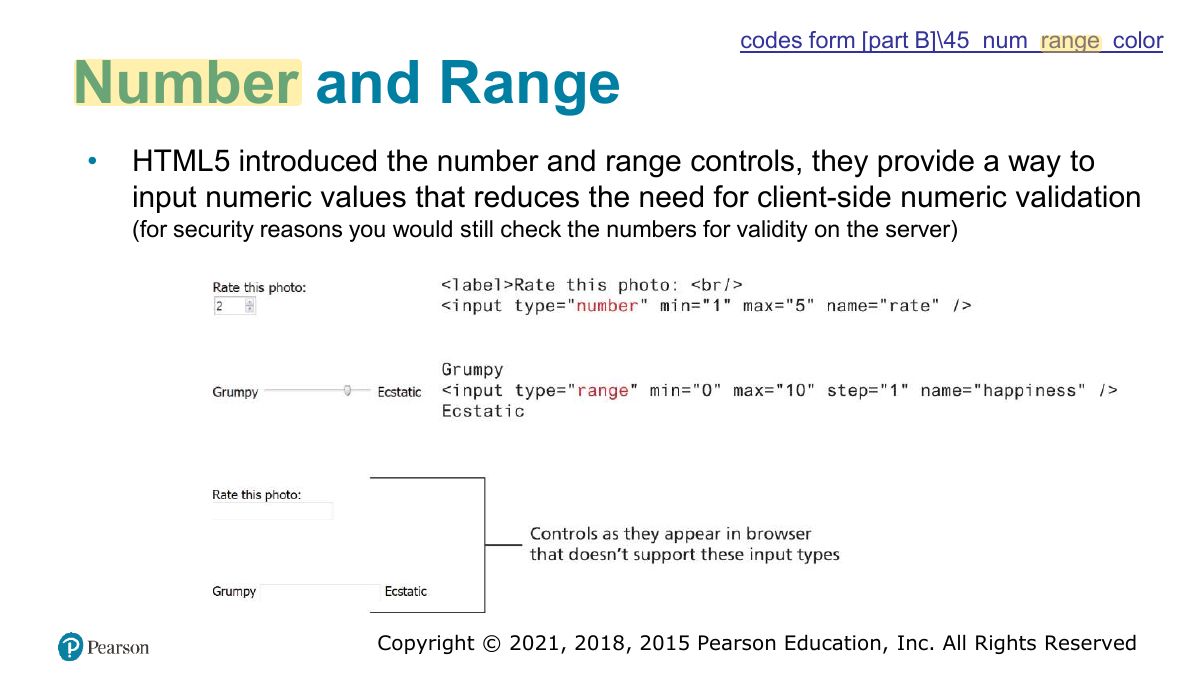
codes form [part B]\45_num_range_color
Date and Time Controls
Date and time controls Figure
Associating labels and input elements
Notes
<label for="id"> associates text with an input (click the label to focus; better accessibility).
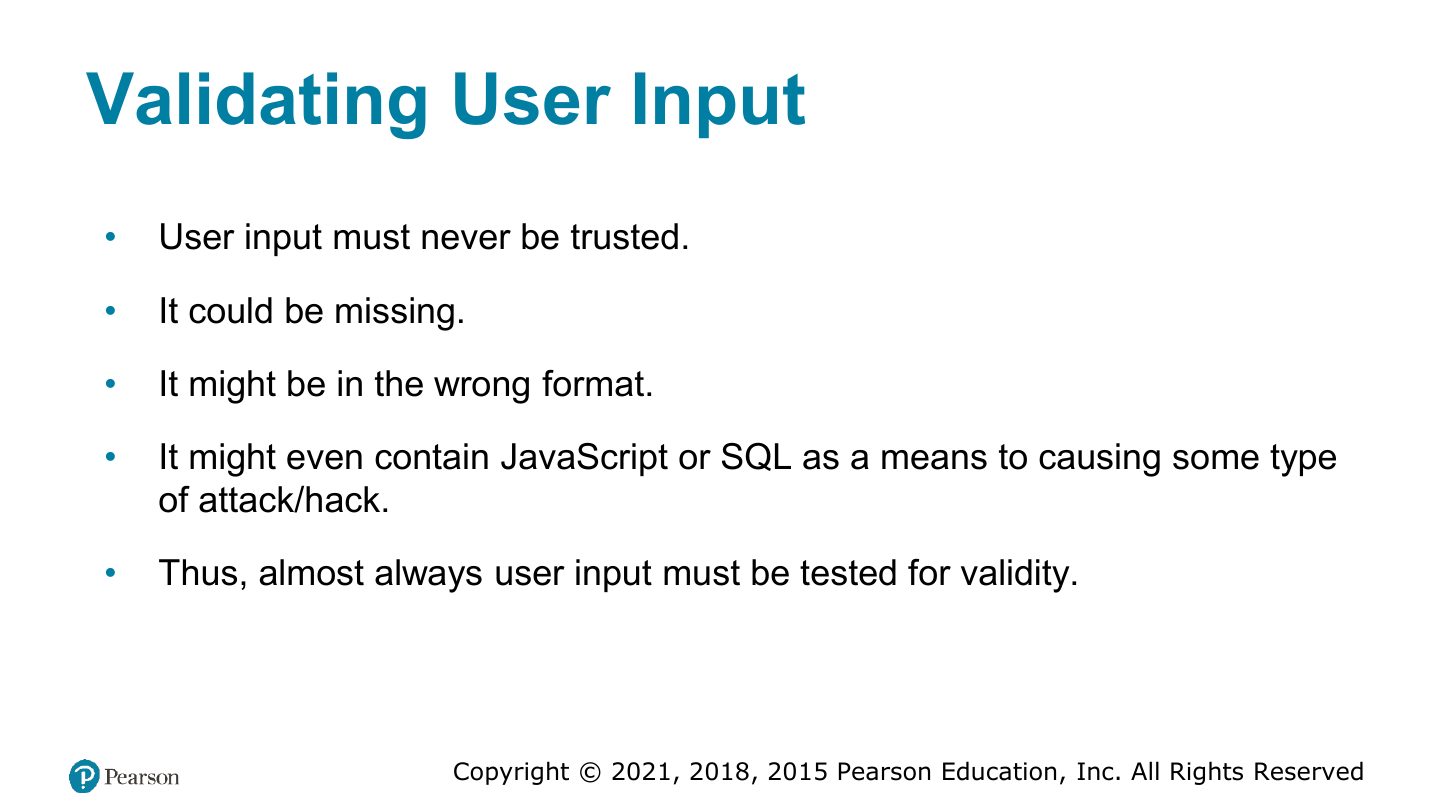
Validating User Input
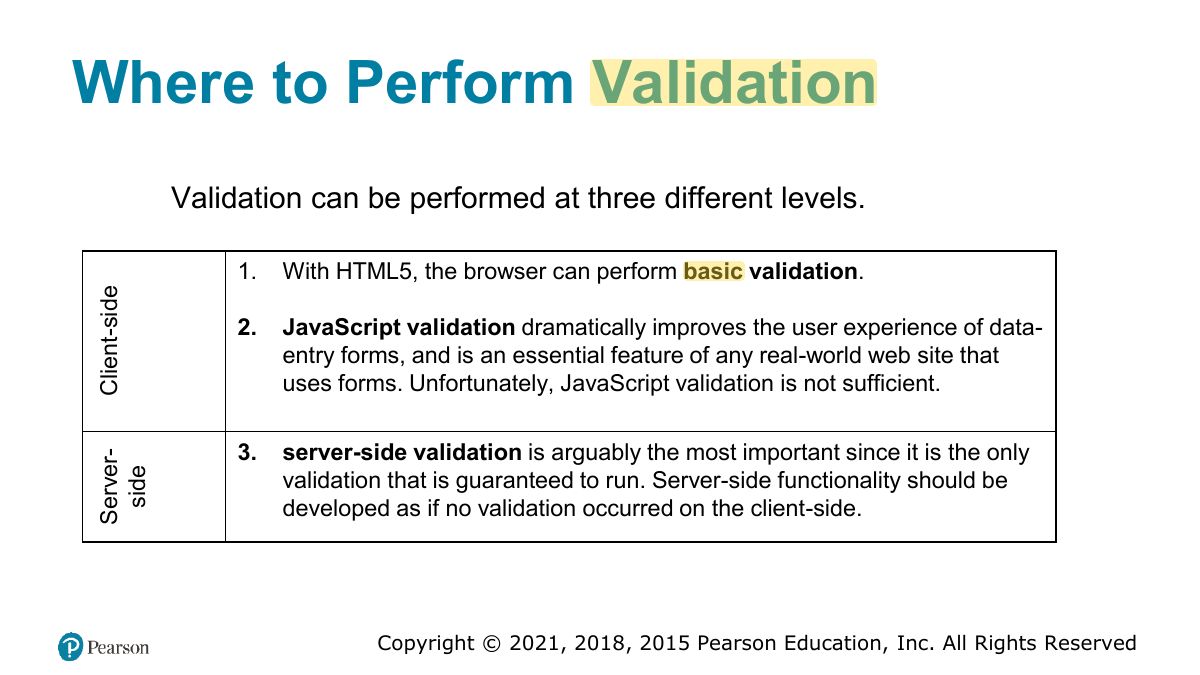
Where to Perform Validation
Notes
Validate on the client (fast feedback: required, pattern, type) AND on the server (security: the client can be bypassed).
Exam angle
Client-side validation is enough to protect the server.
- Always validate on the server too.
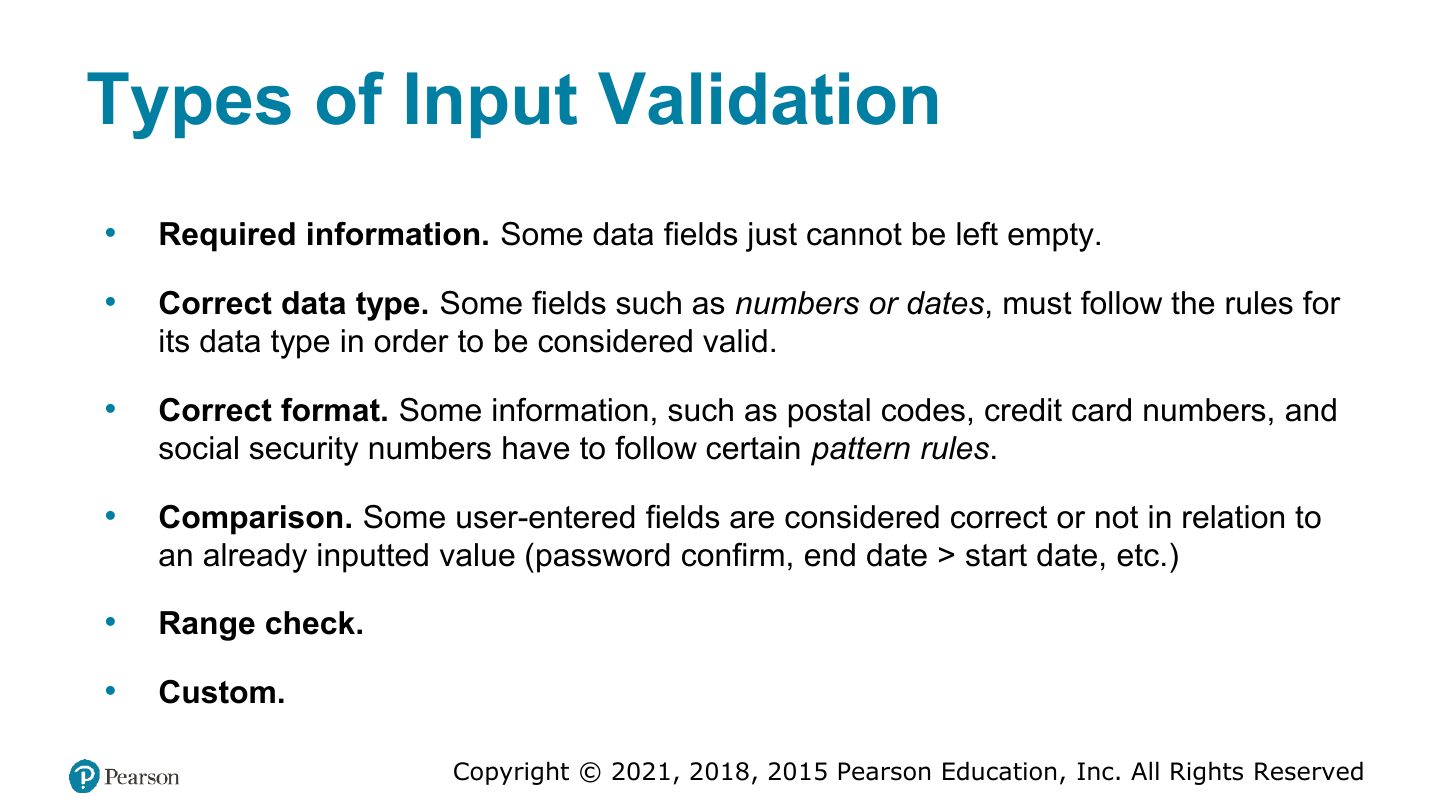
Types of Input Validation
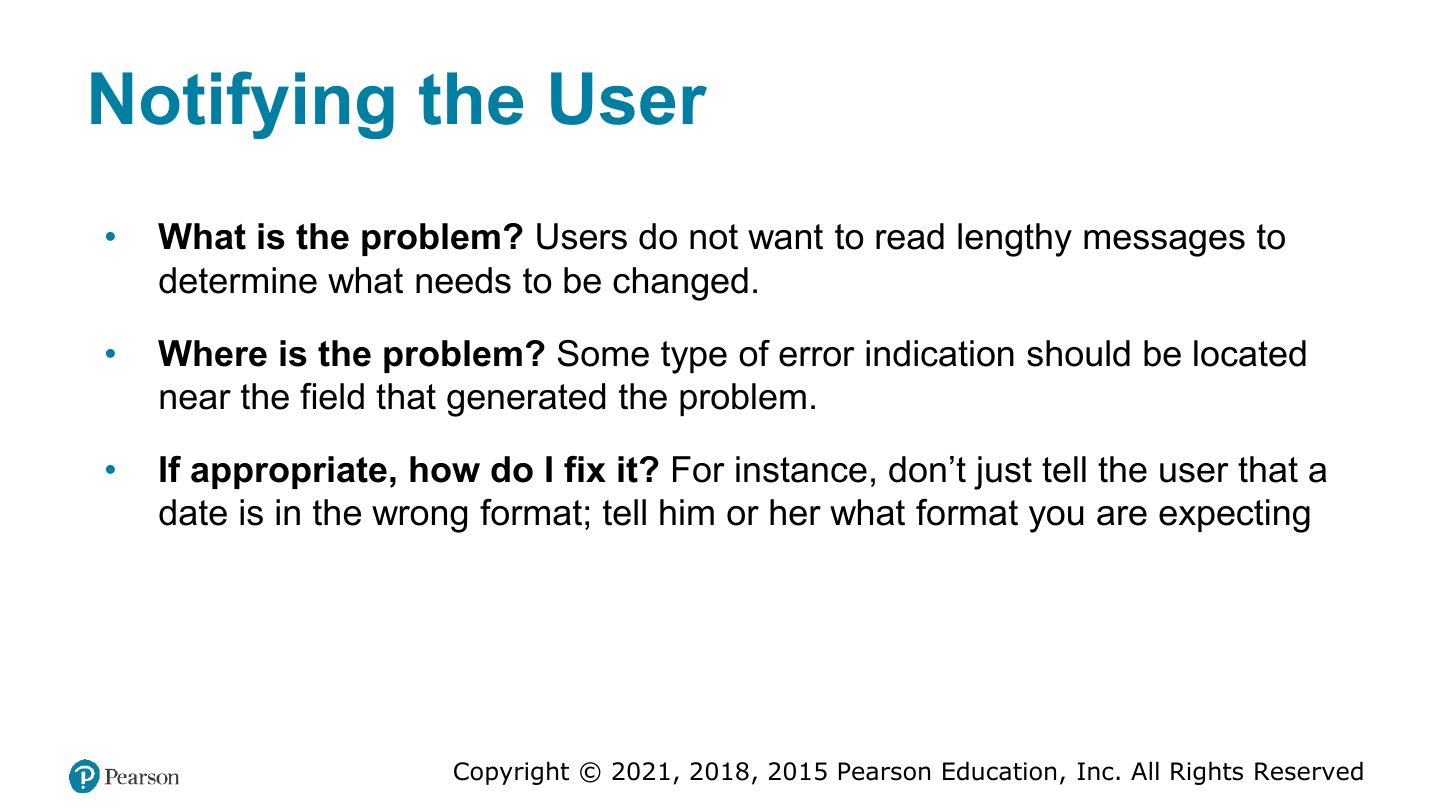
Notifying the User
Notifying the User (Figures)
How to Reduce Validation Errors
Color Models
RGB Color Model
Slide 72
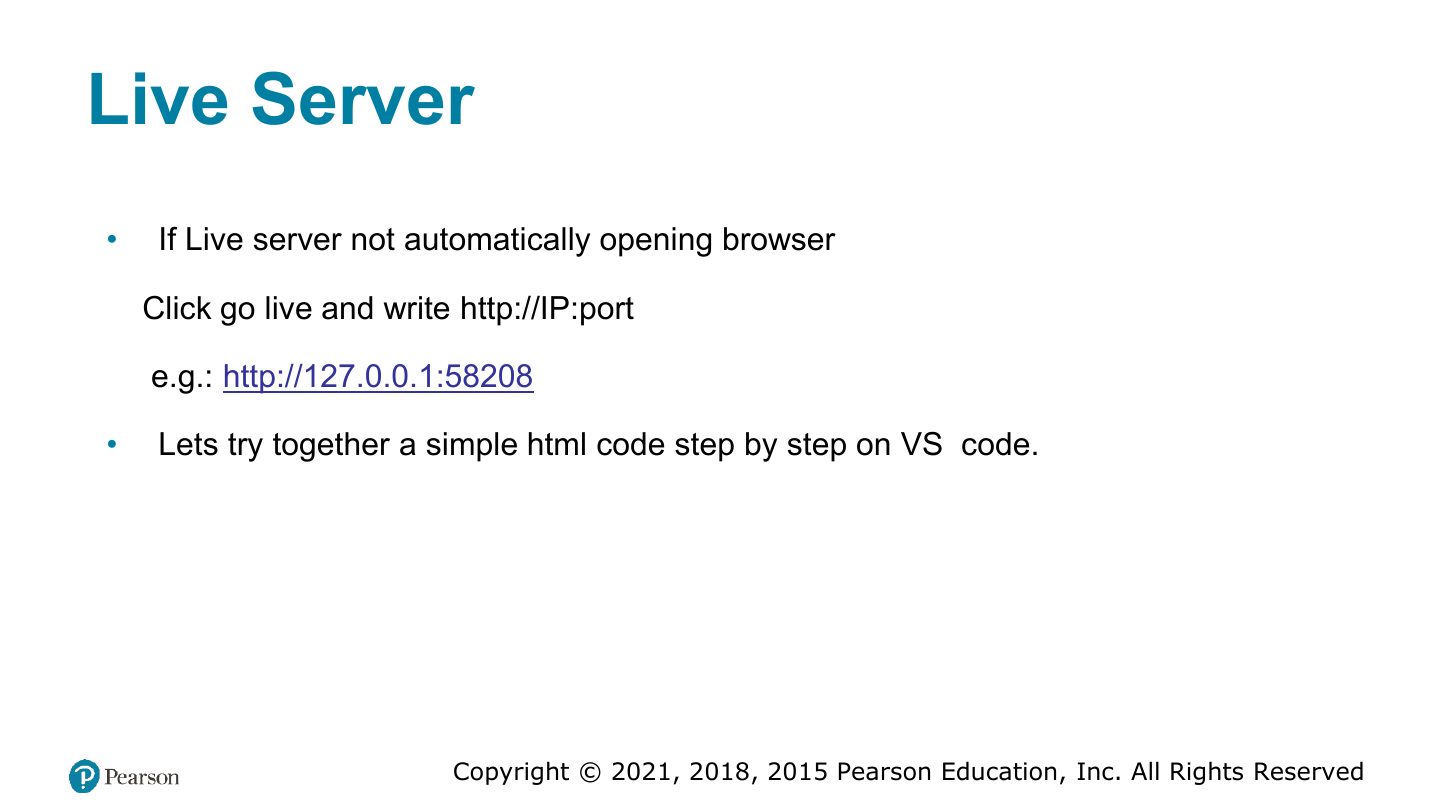
Live Server